Candidate Scheduling Application
What is the Scheduling Web Application for?
It's a standalone web application that serves for candidates to Schedule interviews based on Scheduling Template settings and content.
The web applications are responsive therefore supported both on a desktop computer and mobile devices.
How does the candidate access it?
The only way to access the application is through a direct link that the candidate receives with the invitation to schedule the interview email (and) SMS, the communication is called 'Request to Schedule'.
No candidate registration or sign-in is required, the link will always open the app.
Even after the interview has been scheduled, the candidate can return to any of the received links to the application and see the corresponding page with correct information.
In fact, there is only one link to the application and is tied to the event instance and the candidate's Job Application. The link is generated from the {{Event.URL}} merge filed.
For more details go to Scheduling Communications.
Custom Branding
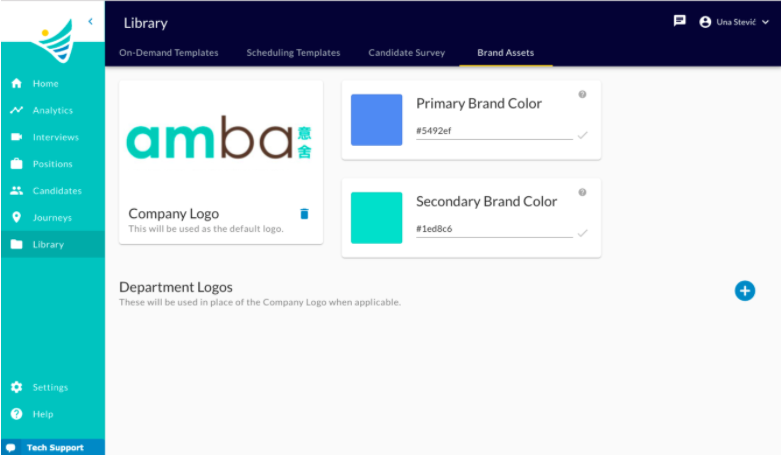
The Scheduling Web Application interface colors for main CTA-s and Links depend on the configuration of the Primary and Secondary colors on the Brand Assets page in the Library.
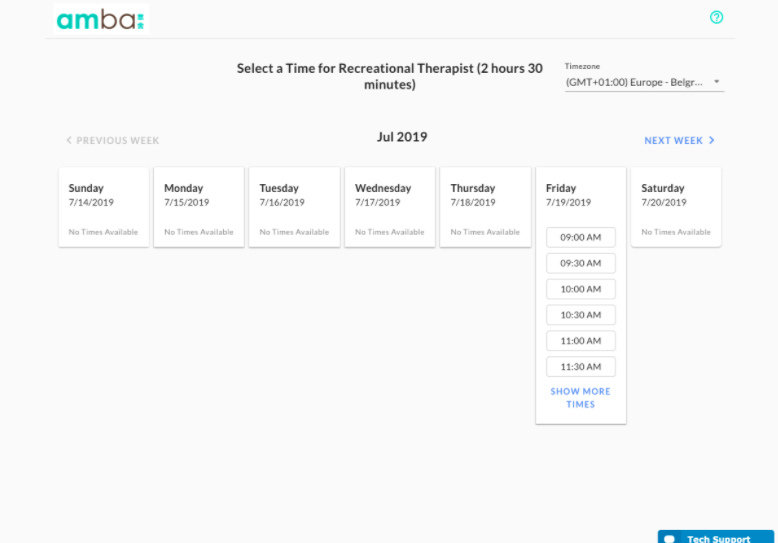
In the header of the application, the 'Logo' image will be populated by the Department logo for the position the candidate applied for if no department logo it will be filled by the Company logo.
What are the pages of the App?
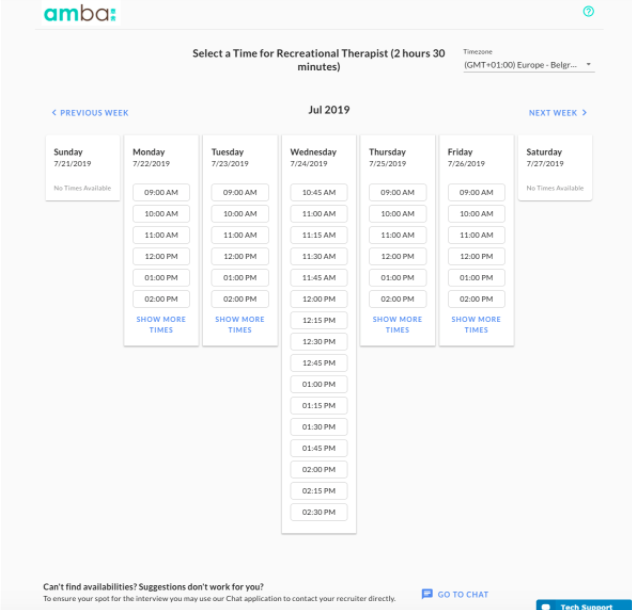
Pick Date and Time Page
- The page is opened if the following requirements are metat the moment of clicking the link:
- The Event is in the state:Scheduling Requested
- All the interviewers set on the template havecalendars connected.
- As soon as the page is loaded, the Template Version is fixed (and further updates to the template will not affect the flow) and the Event state changes toScheduling In Progress.
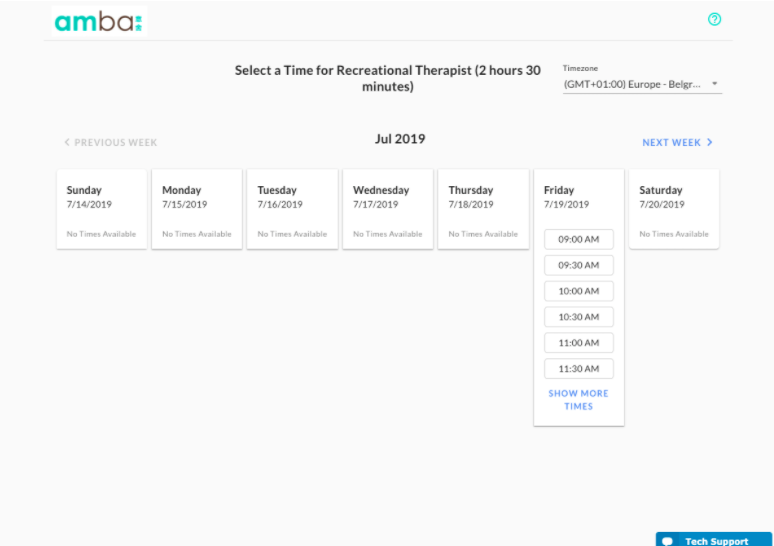
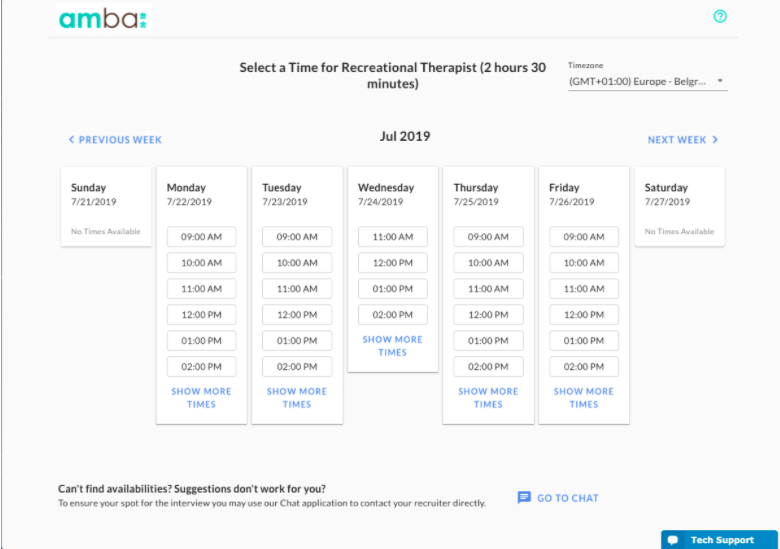
- Page purpose: Candidate is supposed to pick an available time-slot and confirm it to schedule the interview.
- In case the candidate cannot find any day with available time-slots, because there are no availabilities OR because the options listed don't fit the candidate's schedule, then the page offers an option to go to theTwo Way CommunicationsApp and contact the recruiter directly.
- Page Elements:
- The title that shows the Position and Interview duration for which the candidate is asked to schedule.
- Timezoneselector to choose in which timezone the candidate prefers to see the times.
- The Weekly Availabilities- filled when there is at least oneavailable time-slotper day, Sunday to Saturday.
- 'Show More Times'link to expand the options for a single day.
- 'Next Week' link, when enabled, to load the next week set of availabilities. Link is disabled when the 'Last Day to Schedule' is the first day of the next week.
- 'Previous Week' link, when enabled, to load the previous week set of availabilities. Link is disabled when the candidate is looking at the current week so that he cannot navigate in the past weeks.
- 'Go to Chat' button, shows only when the candidate proceeded to the next week. Redirects the candidate to the Two Way Chat App.
- 'Tech Support' 'Chat with an expert' that serves to contact Convey Support in case of technical issues.
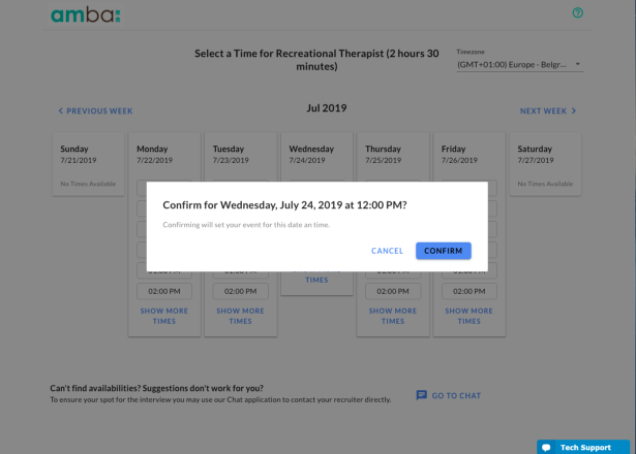
- Confirmation modalwhen time-slot is picked and candidate needs to confirm their selection. In case the selected time-slot has been taken in the meantime (from the moment the page was loaded to the moment the candidate selected a time-slot) there will be a notification modal and the candidate will have to pick another slot. The taken one will no longer be listed as available.
Confirmation Page
- The page is opened if following requirements are metat the moment of clicking the link:
- the Event is in the state:Scheduling In Progress.
- previously the candidate confirmed the selected time-slot.
- As soon as the page is loaded, the Event state is changed toScheduledand event is created in the Interviewers calendars and their receive calendar invites and communication from the template, while the candidate receives the Scheduling Confirmation Communication from the template.
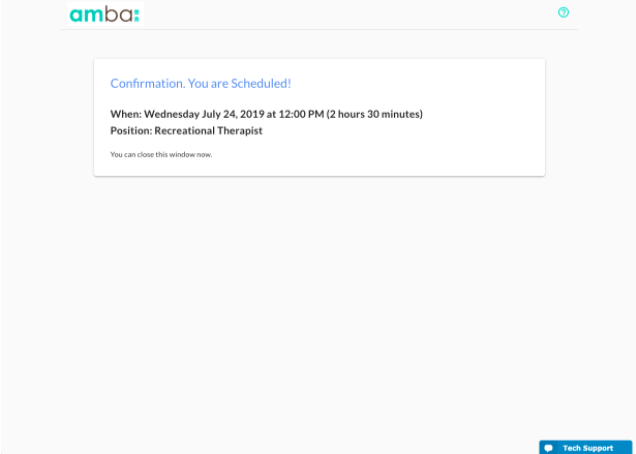
- Page purpose: To inform the candidate that the interview is scheduled and provide a button to download a calendar ics. attachment(YET TO BE IMPLEMENTED).
- Page Elements:
- Title and content that provide summary on: Date, Time, Duration, Position and Company.
- CTA to download calendar attachment
- 'Tech Support' 'Chat with an expert' that serves to contact Convey Support in case of technical issues.
Event Already Scheduled Page
- The page is opened if following requirements are metat the moment of clicking the link:
- the Event is in the state:Scheduled
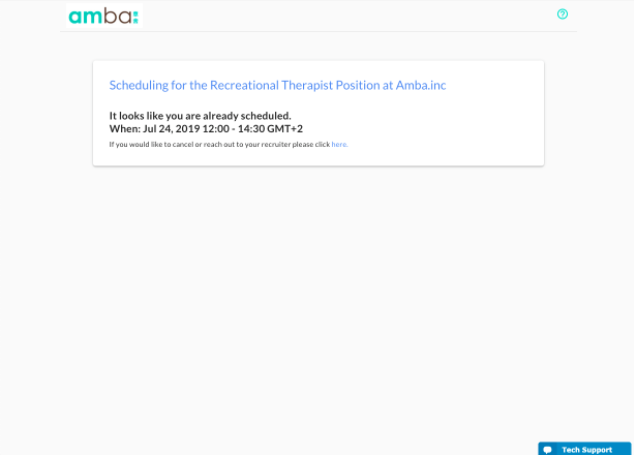
- Page purpose: To inform the candidate that this interview is scheduled already and provide a summary of Date, Time, Duration, Position, CompanyAND link to the Event Cancellation Page(check #4)
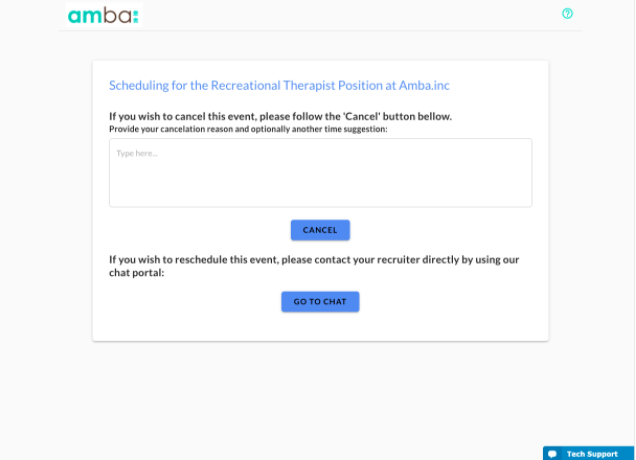
Event Cancellation Page
- The page is opened if the following requirements are met:
- the Event is in the state:Scheduled and the user clicked the link from the 'Event Already Scheduled' page
- Page purpose: to give the candidate a way to cancel the interview and optionally provide feedback on why they are canceling. As an alternative before canceling, the candidate can reach out to the recruiter though the Two Way Chat app.
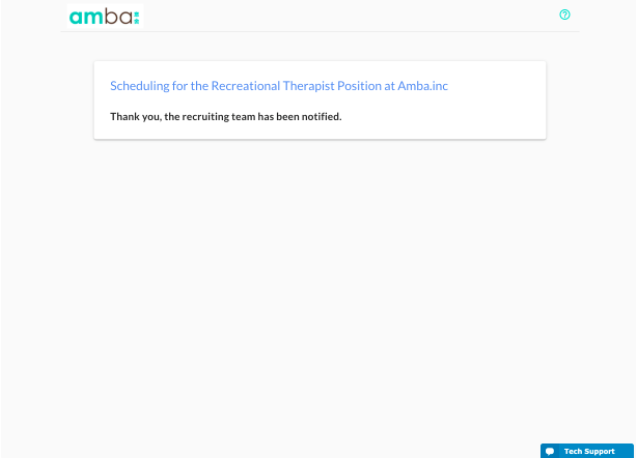
- As soon as the Interview is canceled, the state will be changed to canceled and the user redirected toThank you page.
- Page elements:
- Cancellation feedback input field
- Cancel CTA
- CTA to go to Two Way Chat.
Scheduled Event Canceled Page
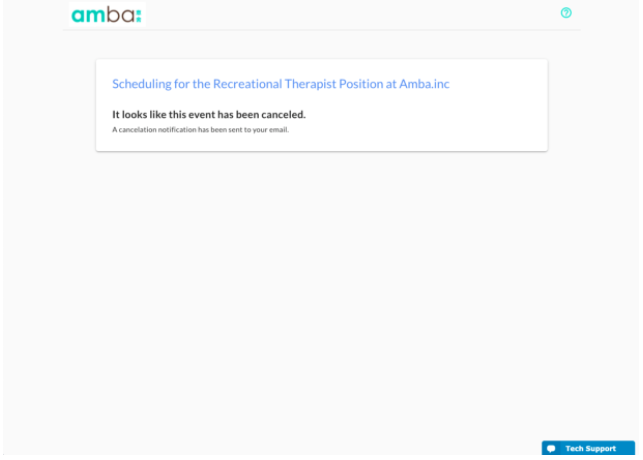
- The page is opened if following requirements are metat the moment of clicking the link.
- the Event is in the state:Canceled
- Page purpose: In case the candidate headed for the scheduling link for an interview that is already canceled, this page notifies the candidate accordingly.
Last Day to Schedule Expired Page
- The page is opened if the following requirements are metat the moment of clicking the link:
- the Event is in the state:Scheduling Requested
- the Last Day to schedule is set on the event
- the Last Day to Schedule has expired
- Page purpose: Let the candidate know that they have missed the scheduling time window
Request Canceled Page
- The page is opened if following requirements are metat the moment of clicking the link:
- the Event is in the state:Request Canceled
- Page purpose: Let the candidate know that the recruiter has canceled the request to schedule. With optional 'reason'
We are Having Trouble Finding Availabilities Page
- The page is opened if following requirements are metat the moment of clicking the link:
- the Event is in the state:Scheduling Requested
- at least one interviewer set on the template does not have the calendar connected
- Page purpose: Let the candidate know that we are not able to calculate availabilities at this time and that the recruiters have been notified. There is also a link to the two-way chat.