How to Create a Scheduling Template
General Overview of page elements:
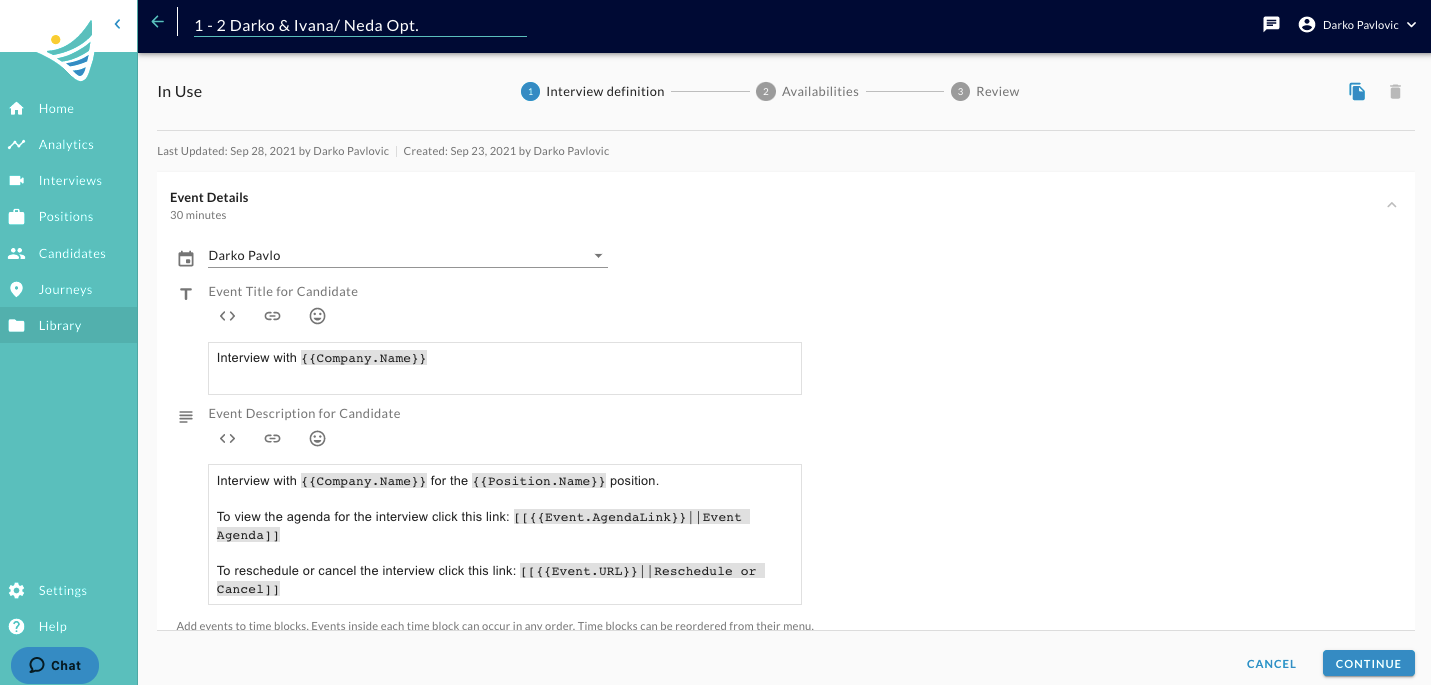
- Header- contains the Template Name input field and link to navigate back to the parent page.
- Expandable Sections- Each section has a unique purpose with title and description text. All are expanded by default.
- Footer- The footer area will contain main CTA actions that confirm either the CREATION of the template or SAVING of the updates to the template. It's also a placeholder to general error messages.
Template sections overview:
- Three parts of creating a Scheduling Template:
- Interview definition - Defining the template and the interview flow
- Availabilities- Defining the available time slots for required recruiters or hiring managers that are required to participate in the digital interview.
- Review- Review the availability of all required recruiters or hiring managers participating in the interview process.
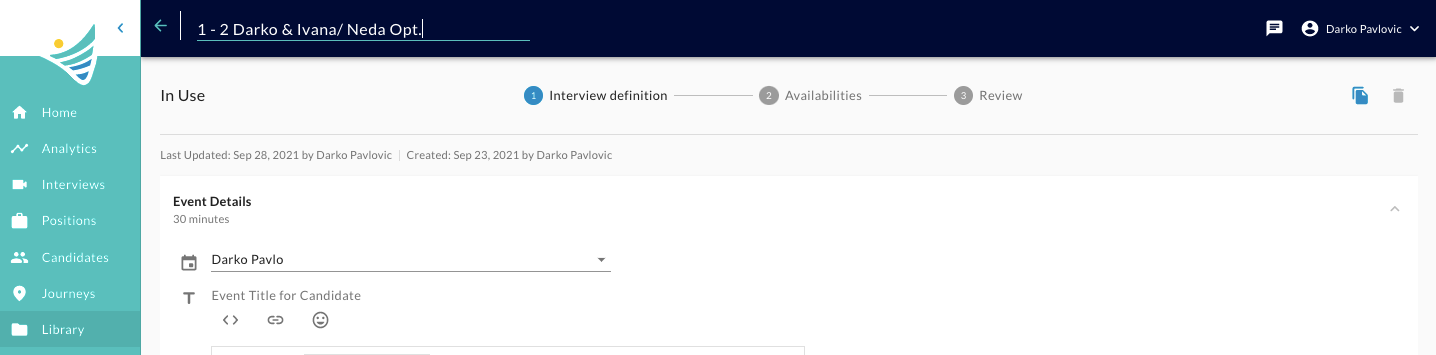
- Template Name- Input in the Header, serves to add Template Name
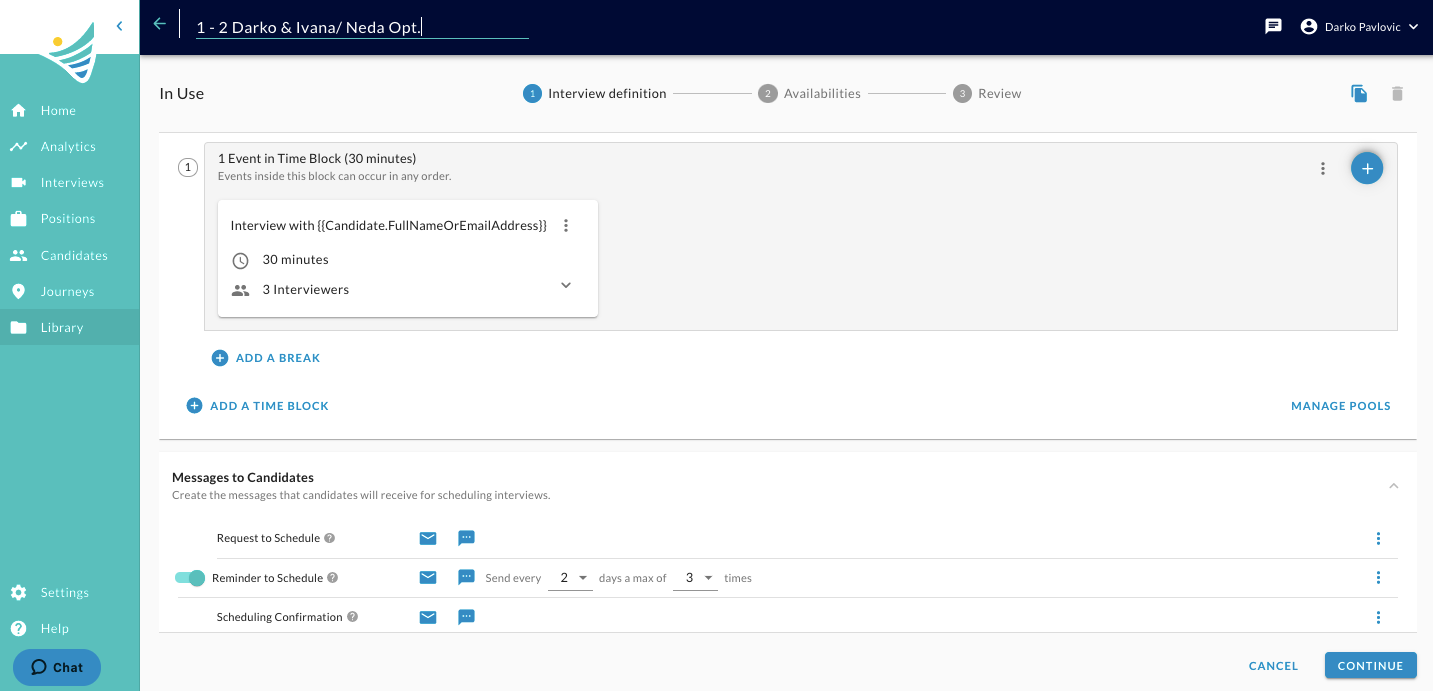
- Scheduling Events- Here individual events are created and reordered. All event requirements are specified in this section. Serves both for single and sequenced event set up.
- Messages to Candidates- Lists all communications that will go out to Candidates. Place where communications can be viewed and customized.
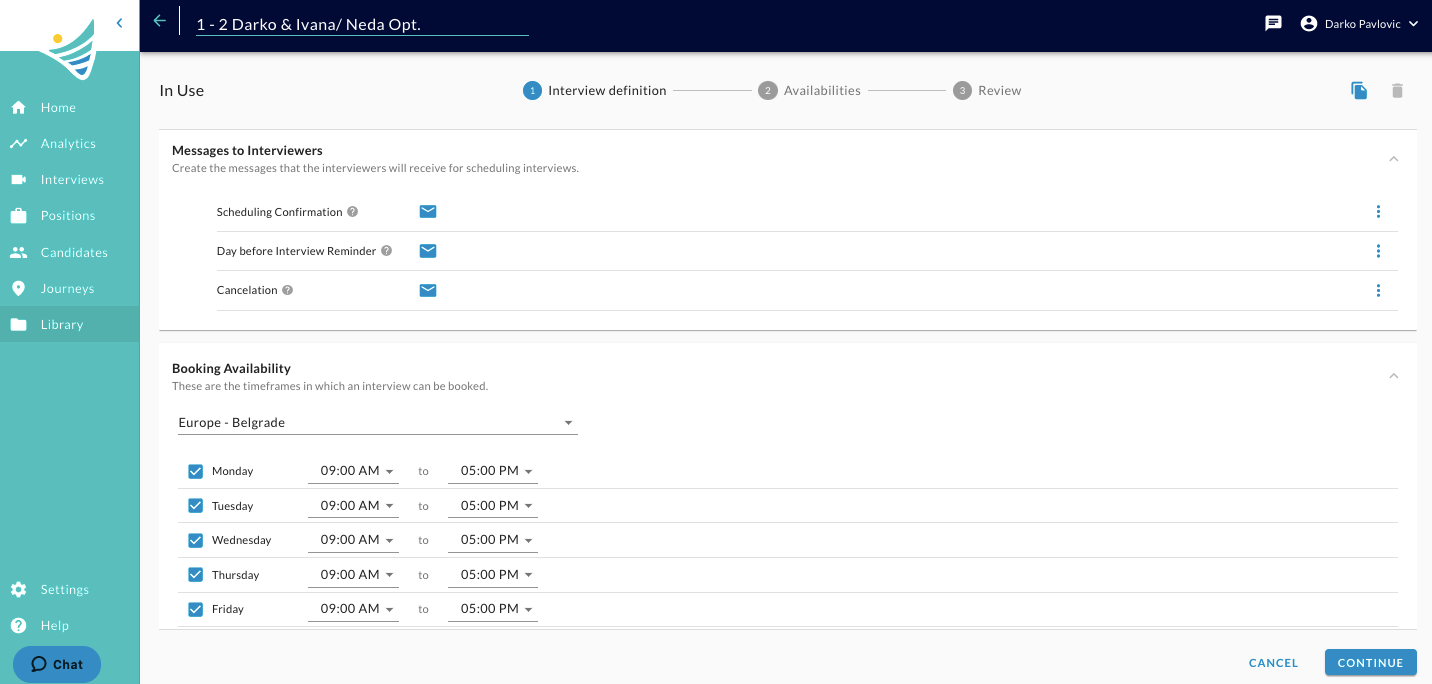
- Messages to Interviewers- Lists all communications that will go out to Interviewers. Place where communications can be viewed and customized.
- Booking Availability - Lists all the working hours for every day of the week. Place where the working hours rule will be set for all events scheduled based on this template.
Minimum requirements to create a Scheduling Template:
The process of Creating and new Scheduling Template includes the following required items:
- Providing aScheduling Template Name
- SpecifiedScheduling Organizer
- At least one Eventto the Time Block. The event itself needs to meet the following requirements:
- have an Event Title
- have at least one Required interviewer or a Pool of Interviewers
- have an Event Description
- Includingrequired merge fieldsin the Messages to Candidates and Interviewers. These will be provided by default, in case the user deletes them, they will have to be added:
- Request to Schedule requires the Link to the Event:{{Event.URL}} or Button: Schedule Interview
- Reminder to Schedule required the Link to the Event:{{Event.URL}}or Button: Schedule Interview
- Selecting aTimezoneon the Booking Availability.
- Selectingat least one day in the week.
INTERVIEW DEFINITION:
Scheduling Template Name
Template Name filed is located at the top of the page and contains a placeholder 'Untitled Scheduling Template' to indicate that this template has no specific name yet.
The Name field can contain any text as long as it is unique among existing Scheduling Templates in the company. If else, an appropriate error will appear: A template with this name already exists. Please change.
Scheduling Events
This section serves to create a single event or multiple events (for sequenced interview type) within one Interview, based on which availabilities will be calculated against and ultimately event(s) created in the interviewer's calendars.
Scheduling Organizer
The field requires selecting a user in the company. This person will be treated as the 'owner' of the event within the Convey system.
This user is not automatically added to the event, the person will not be mentioned or in any other way part of the event created in the calendar, therefore the availability of this person will not be taken into account.
The use case best serves people that are in charge of organizing the events/interview but will not physically take part in the events.
If this person needs to be part of the event, then he/she must be added as a required interviewer.
What does the Organizer serve for: This user will receive email notifications and be alerted on the homepage about the event or template when his attention is required:
- When there is a user in the company that has a disconnected calendar but is used in Template(s) as an interviewer. Since this will block scheduling an interview, the organizer will be notified via email.
- When scheduling requests, that have a 'Last day to schedule' set, are about to expire. So in case, the scheduling requests need to be prolonged the Organizer can be notified on the homepage and can edit.
- When a scheduled event is canceled, the Organizer will see a notification via email.
- When the required interviewer denies or marks tentative attendance to the interview, the Organizer will be notified via email.
Time Block
A Time Block serves as a container of events that need to happen in that period compared to another Time block with events. The Time Block is used to specify the ORDER in which multiple events need to be scheduled in a sequenced interview.
If a Time Block contains multiple events within, the events will be scheduled randomly based on availabilities. But all of them will be scheduled before or after another Time Block - following the order in which they were set.
A single Time Block will not make any difference, but if there are at least Two Time blocks - they will affect the order based on which the events will be scheduled.
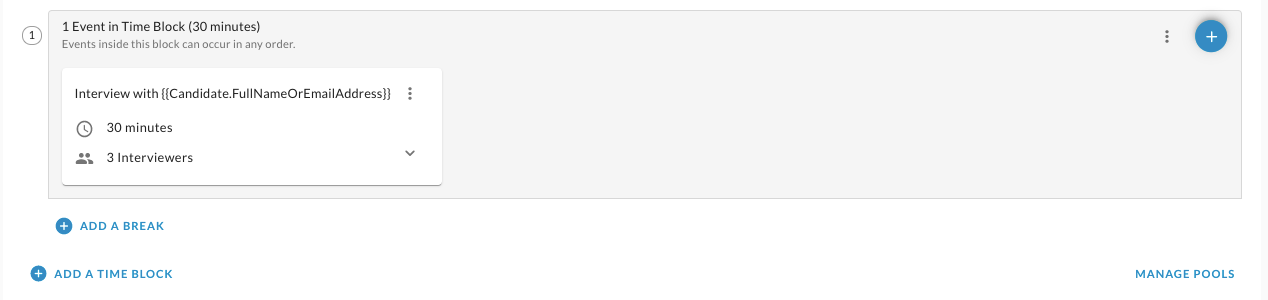
Empty Time Blocks - placeholders until Events are added to each Time Block:
Example of how Time Blocks affect the ORDER of events:
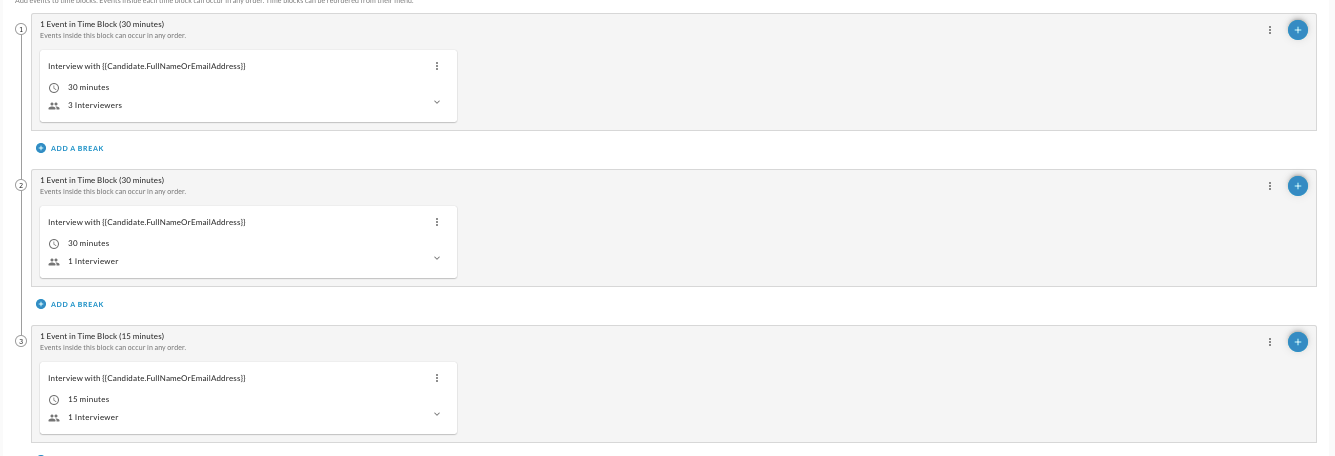
The above example shows that this interview will start with the first Event in the first time block: 'Introduction by HR' for 30 minutes. Followed by one of the two Events in the following Time Block. Which of the Events from the two will be first which second will be determined based on calculated availabilities of the interviewers added to the two Events. Once those two Events are set, the last event that will happen is the Event in the third Time Block: Interview Feedback with the HR Team.
Conclusion: The Order of Time Blocks will be respected exactly as set on the template when the event is scheduled, while the order of Events within a Time Block is undetermined until scheduled and will be set based on best effort availability calculation.
Event Block
An Event Block is an Event that will be created in the interviewer's calendar based on a specified duration and list of interviewers.
It mimics the way events are created in the calendars and is the place where the organizer/template creator specifies which interviewers are required, how many are required in a Pool and which are optional.
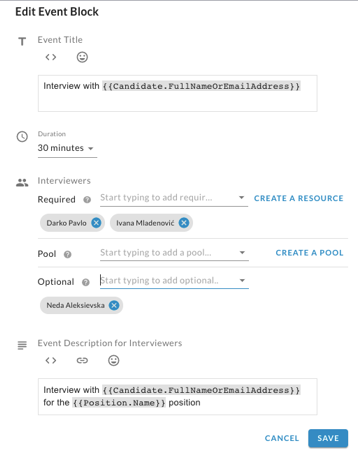
Event Title: Is required and has a default value: Interview with {{Candidate.FullName}}. It supports merge fields and emojis. It can contain any text, the default is to suggest a clear indication with whom is the interview supposed to happen.
Duration: Values have increments of 15 minutes. No event can be scheduled with a duration of less than 15 minutes. Users can select options from 15 minutes up to 3 hours. (THE MAXIMUM VALUES CAN BE UPDATED AT ANY POINT BASED ON CLIENT FEEDBACK)
Interviewers: An event can have 0 interviewers if it is not the only event in the interview, otherwise one interviewer is required. The recruiter can select people from the 'Required' and 'Optional' dropdowns. The listed people are user in the company that has calendars connected. The recruiter can also select Pools to add to the list of interviewers. If no Pools listed, the 'Create a Pool' is accessible from the same modal. For more information read about the Pools here.
Event Description: Is required and has a default value: Interview with {{Candidate.FullName}} for the {{Position.Name}} position.
Create a Resouce is afield where you can ad-hoc create a Calendar Resouce to participate in the interview.
Create a pool is to create a group of interviewers where you determine how many are required from that group. If you use this specific pool more than once in a scheduling template, the same members from the pool will always be used.
Event Block with 0 Interviewers:
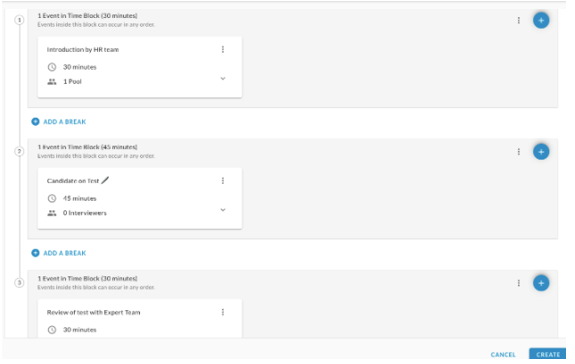
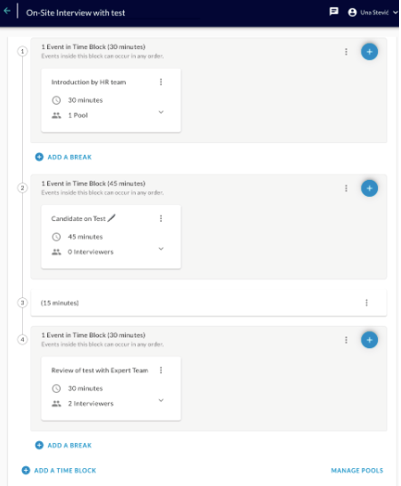
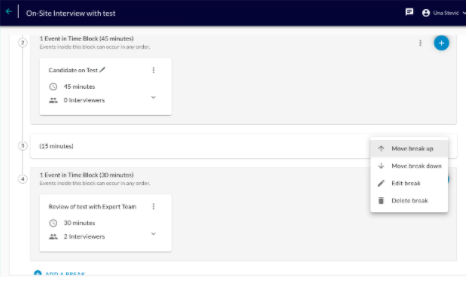
- In case of a sequenced interview, there may be a need to have a 'placeholder' event that will not contain any interviewers but its duration and order will be taken into account when the entire interview is scheduled.
- Example: Candidate on Test case of an event in a sequenced interview. The candidate may be required to fill a test and will be alone in this case, no need to require interviewer attendance and block off time in their calendars. But the event still needs its placeholder in the sequence and event agenda.
Example:
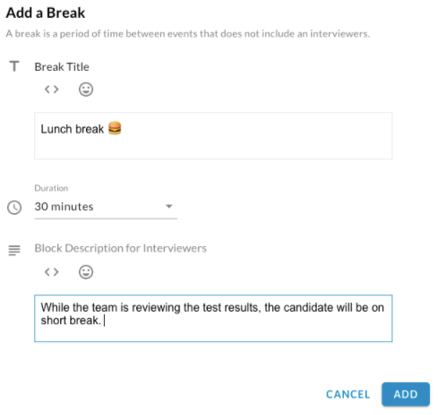
Break
A "Break" is the equal of an Event with the difference that is cannot have interviewers.
The Break can be added anywhere between Time Blocks.
The Break serves as a delimiter between the end of the last Event in the Time Block and the beginning of the first Event in the next Time Block.
The Break can also be set at the end of the sequence.
The Break will appear in the 'Neutral' calendar - the calendar owner, but will not appear in any interviewer's calendar since it does not contain the interviewer's time. Read more about the 'Neutral' calendar in theScheduling Setup - Calendars.
The Break is listed in the Event Agenda as all the other events are. Read more about the Event Agenda.
Move, Edit, Delete Time Blocks / Events / Breaks
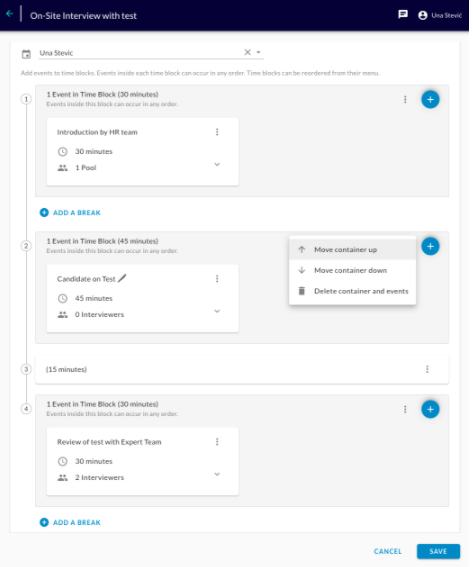
- Time Blocks can be Moved Up and Down to set them in the desired order.
- Time Blocks can be Deleted, with all its events (if any).
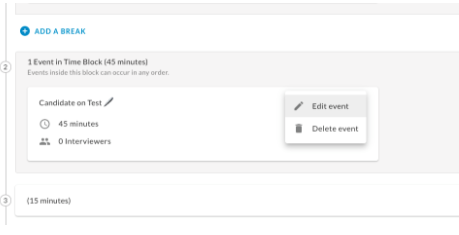
- Events can be Edited and Deleted
- Breaks can be Moved Up and Down to set them in the right place between or after Time Blocks.
- Breaks can be Edited and Deleted.
Messages to Candidates
In this part of the scheduling template creation, you can see the communications that the candidates will receive regarding their interviews. Here is the screenshot:
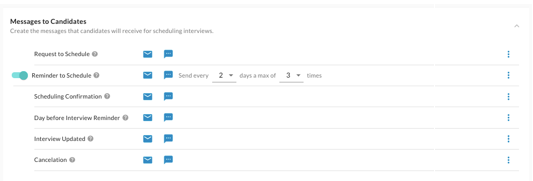
The candidates can receive an email or SMS or both for the following:
Request to Schedule - Email and SMS so a candidate can schedule an interview.
Reminder to Schedule - Optional functionality so that the candidate can be reminded of the interview. The frequency of reminders is set by a person creating a scheduling template.
Scheduling Confirmation - Upon scheduling, communications that the candidate will receive.
Day before Interview Reminder - A reminder a day prior to the interview that the candidate will receive.
Interview Updated - In case of any changes (example: rescheduling), the candidate will receive this communication.
Cancelation - In case of a cancelation of the interview, the candidate will receive this information.
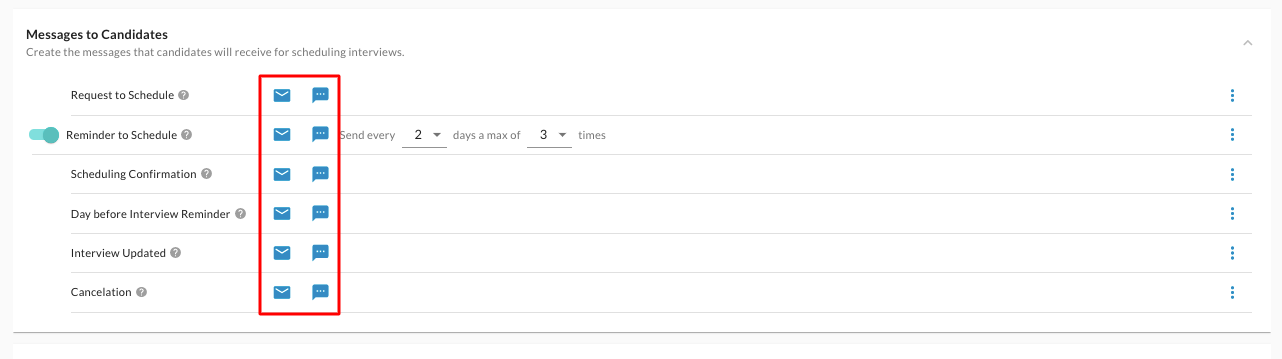
The user can customize the communications sent out to the candidates within the template, by clicking on the email icon or SMS icon. Here is the screenshot:
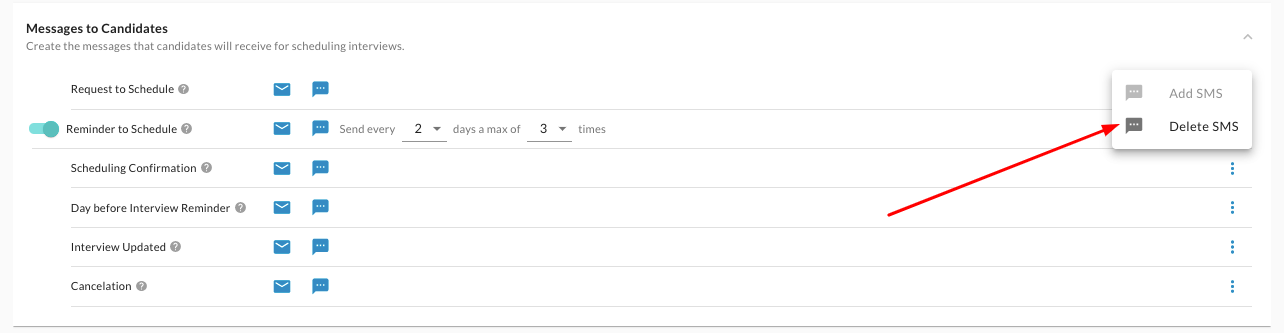
Note that SMS communication is optional and you can remove it by clicking on the grid dots on the right side of the screen and selecting the option Delete SMS. Here is the screenshot:
Messages to Interviewers
In this part of the scheduling template creation, you can see the communications that the recruiters will receive regarding the interviews. Here is the screenshot:

The recruiter can receive an email or SMS or both for the following:
Scheduling Confirmation - An Email or SMS (or both) communication once the candidate scheduling the interview.
The day before Interview Reminder - An Email or SMS (or both) communication as a reminder for the interview a day prior to the interview.
Cancelation - An Email or SMS (or both) communication in case a candidate cancels their interview.
Note that by default setting, you will receive only email. However, you can add SMS communication by clicking on the grid dots on the right side of your screen and selecting the option Add SMS. Here is the screenshot:

When it comes to Automated Scheduling, this part of the scheduling template creation may not be important due to bookings showing on the recruiter's calendar. However, with Manual Scheduling, as there is no calendar sync, this step is important as it informs a recruiter about the latest update of the interview booking and can be accordingly edited by a recruiter in their calendar.
Booking Availability
This helps the calculation present the right slots to the candidates to pick from.
The timezone set on the Template here will also be taken as the default timezone in which dates and times will be presented to the candidates only in case the system cannot detect the candidate's timezone on the browser.
If the interviews that will be scheduled based on the Template should not happen on certain days or during certain times of the day, the organizer can set those rules using the Booking Availability section.
The default given working hours are Monday to Friday:
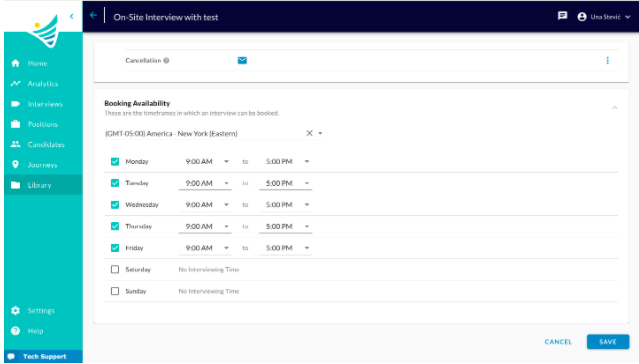
The good practice is to check the days when you would like to have the interviews with the candidates. You can then continue to the next step which will allow you to select the available time within those days when the candidate can schedule the interview with your recruiters or hiring managers.
AVAILABILITIES:
In this part of the scheduling template creation, you can set the availability at what time can the candidates book the interview with a recruiter or a hiring manager. You can select the field by clicking on them or by clicking drag and dropping the field. Here is the screenshot:
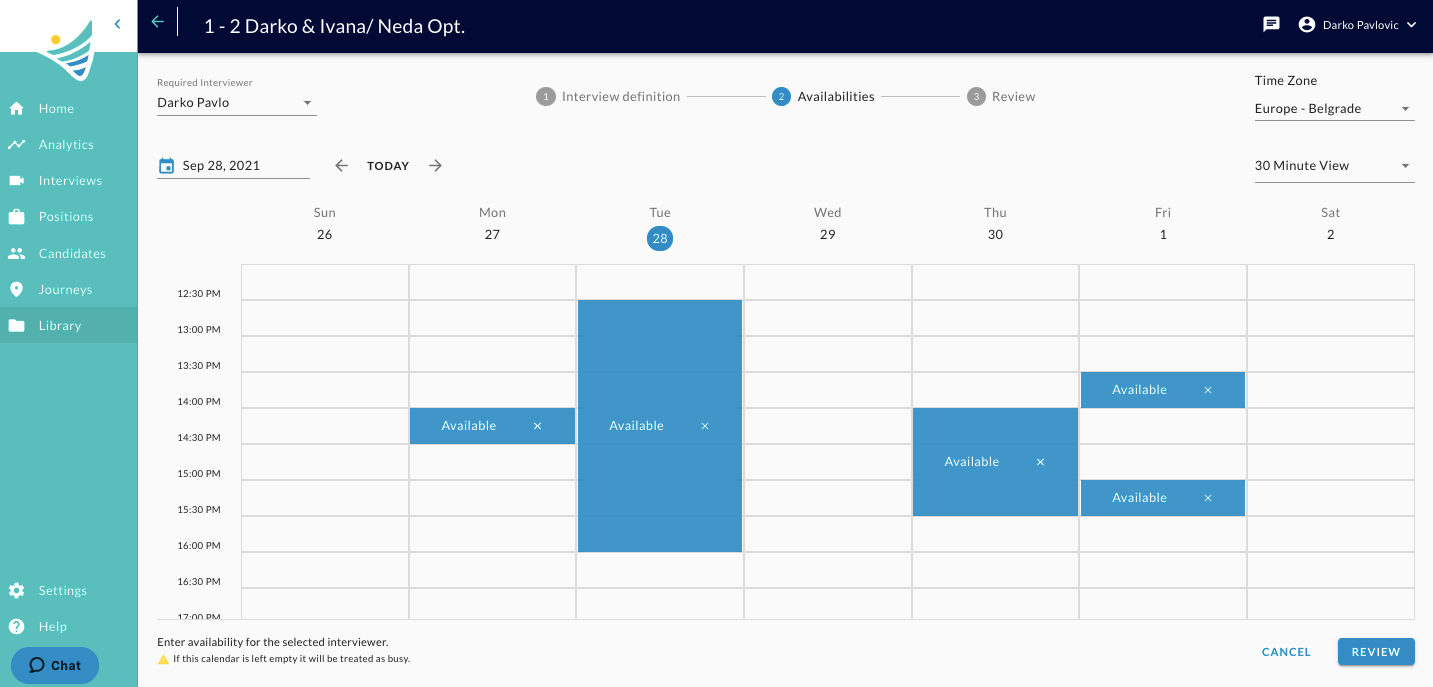
In the upper left corner, you will notice a field with a drop-down menu called Required Interviewer. By changing the recruiter, you can set the availability for other required recruiters. Here is the screenshot:
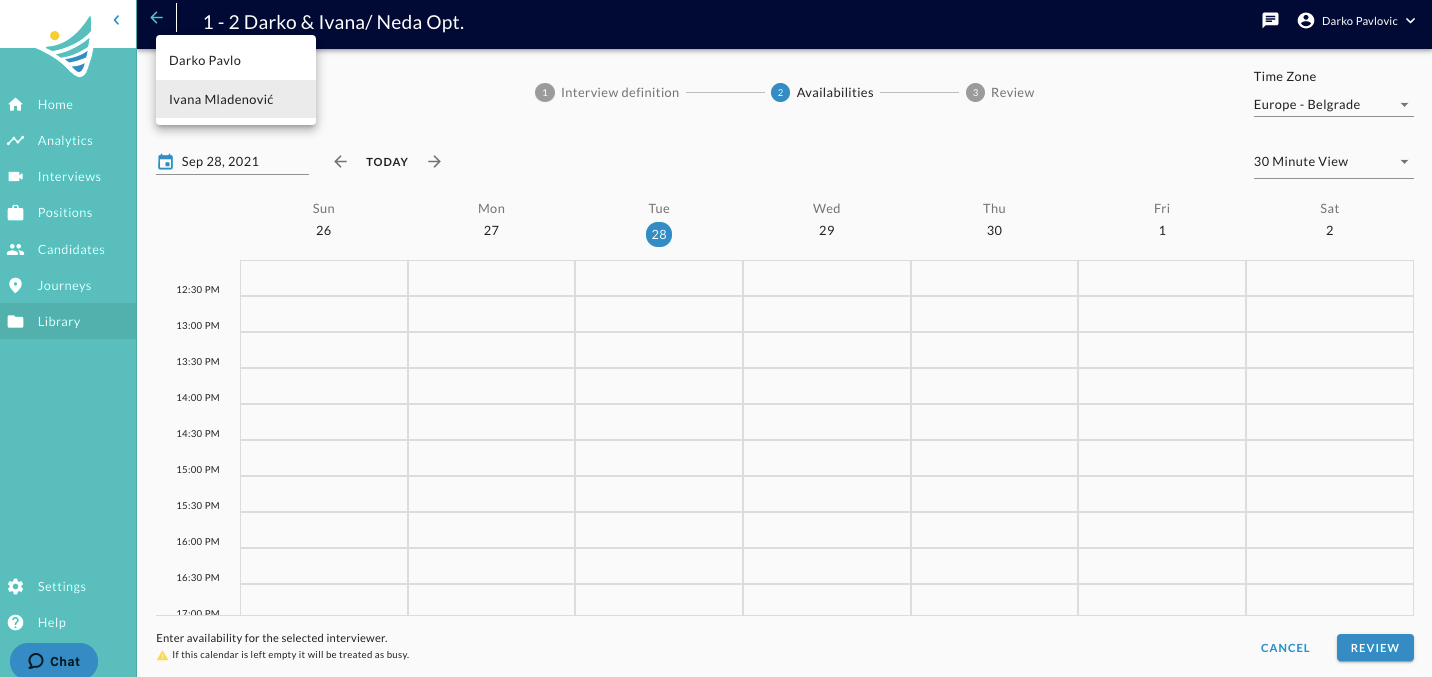
Please note that you can only set the availability for recruiters as required in the Event Block. The calendar of optional recruiters or hiring managers is not being considered.
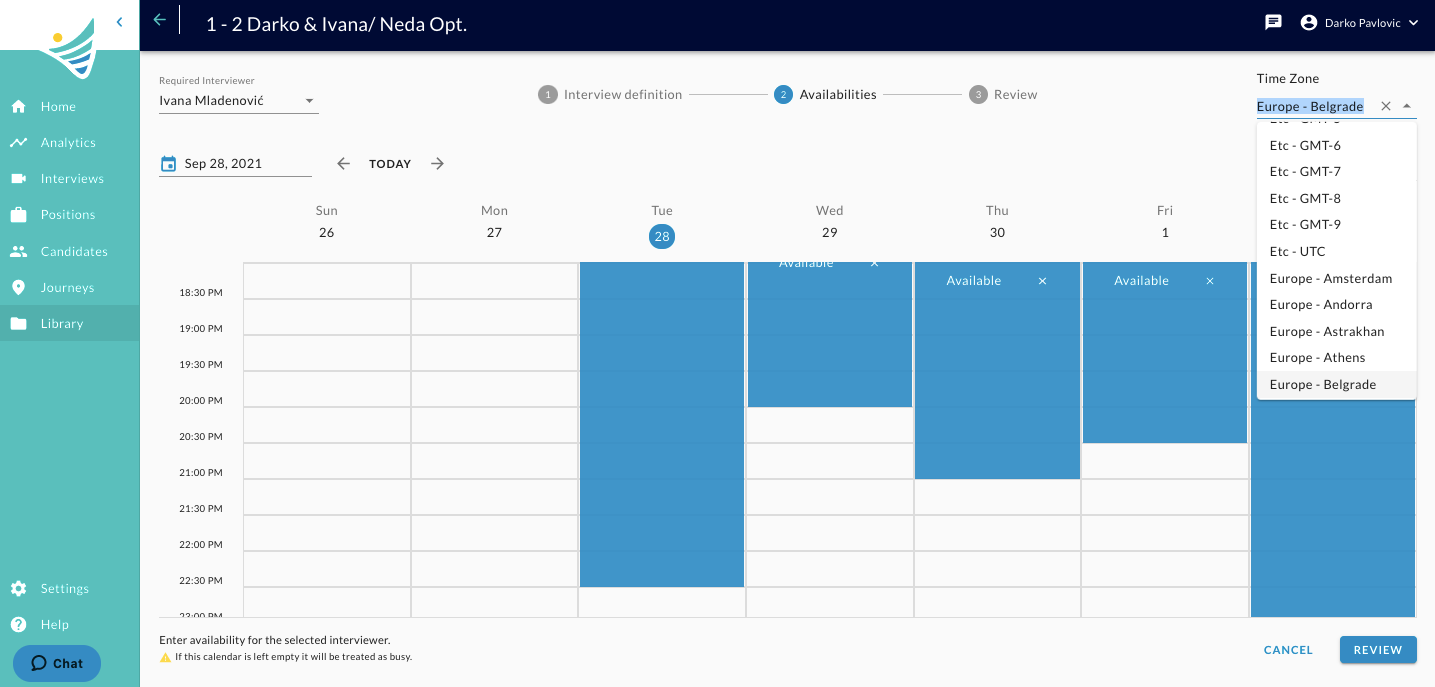
It can also happen that recruiters can be in different time zones. With this functionality, you don't have to calculate availability as ConveyIQ will do this for you. However, you can change the time zone in the upper right corner of your screen. Here is the screenshot:
The default setting for the availability is 30 minutes, however, that can be changed in the upper right corner of your screen to 15 minutes or 60 minutes. Here is the screenshot:
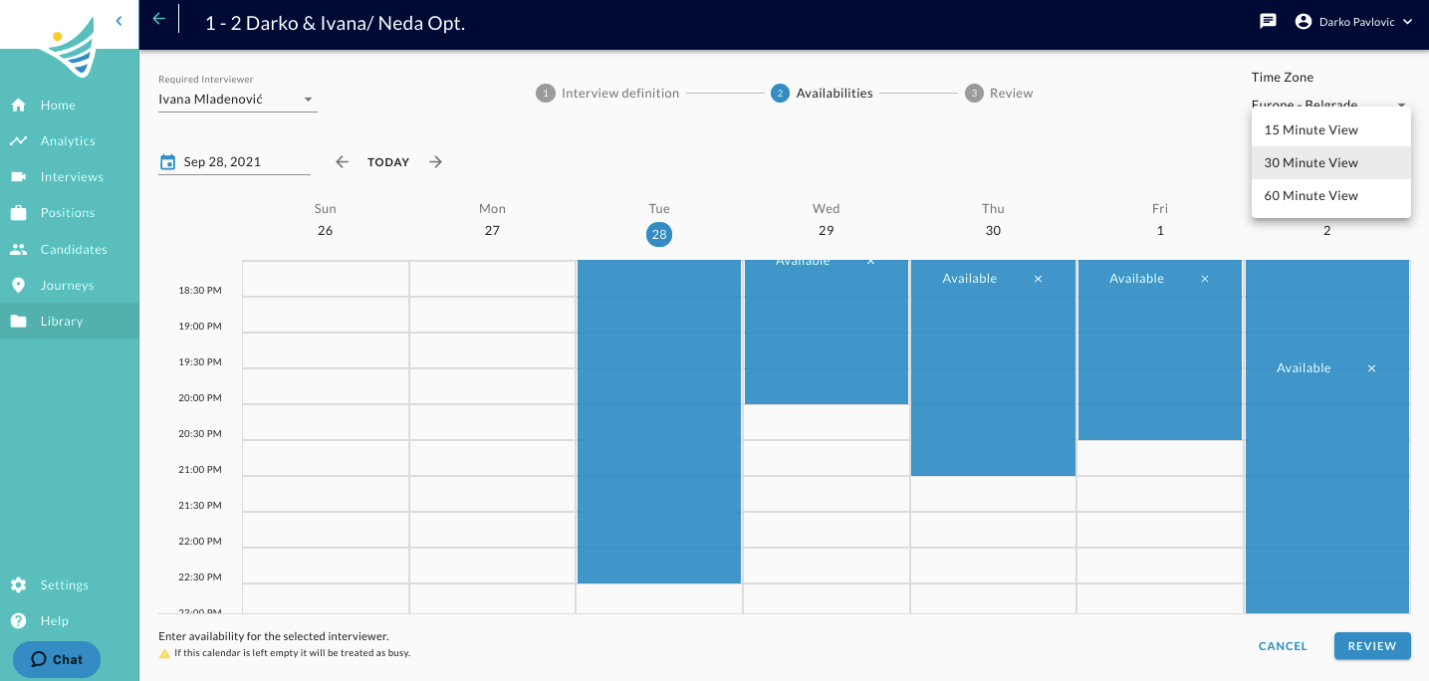
Any unmarked fields will automatically be considered as busy and the candidates will not be able to book interviews at that time.
Once you are ready, you can proceed to Review.
REVIEW:
In the last part of the scheduling template creation, you will see the availability match of both required recruiters (in case there is more than one required recruiter. In case there is only one, the field marked in Availabilities will show). Here is the screenshot:
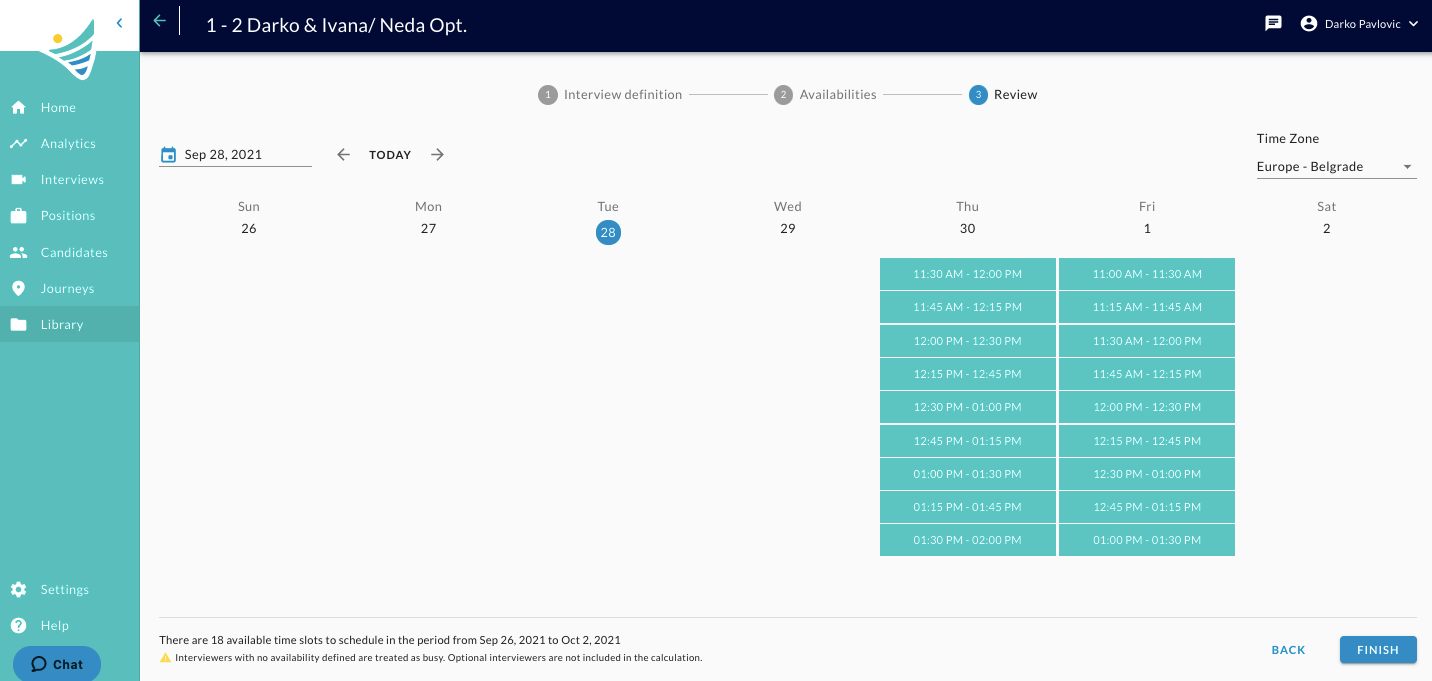
In this part, you can confirm if the time of the bookings that the candidates will make suits your needs. If everything checks out, you can click Finish.
It is also worth noting that with Manual Scheduling, the fields will not populate your personal calendar when a candidate books an interview. However, with Automated scheduling, it will.
And that is it! Congratulations on creating your Scheduling Template!