How to reset individual interview questions
For the completed interview, recruiters are able to:
- Reset the whole interview
- Reset the individual questions
- Check or uncheck as reviewed
- Share the interview with the team using a shareable link or send to user options.
If you would like to reset an individual interview question, please follow the next steps:
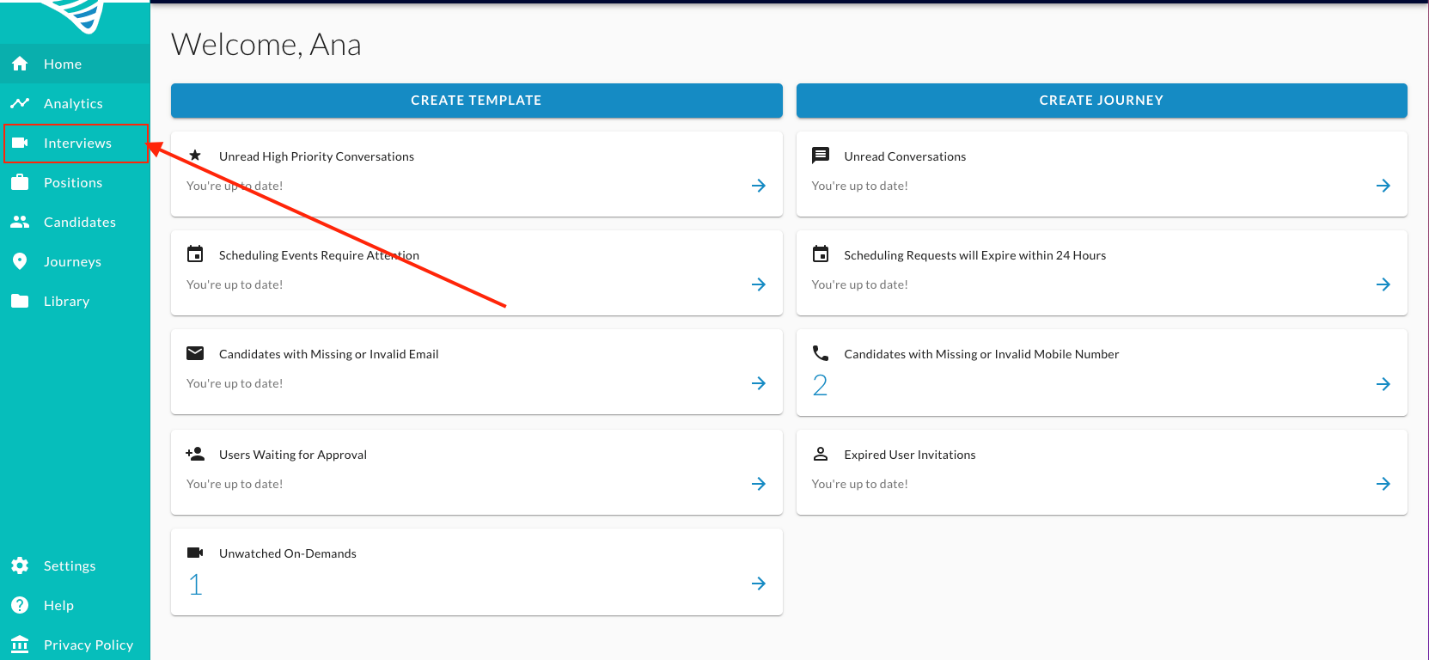
- You will start by clicking the Interviews button on the left-hand side of the screen.
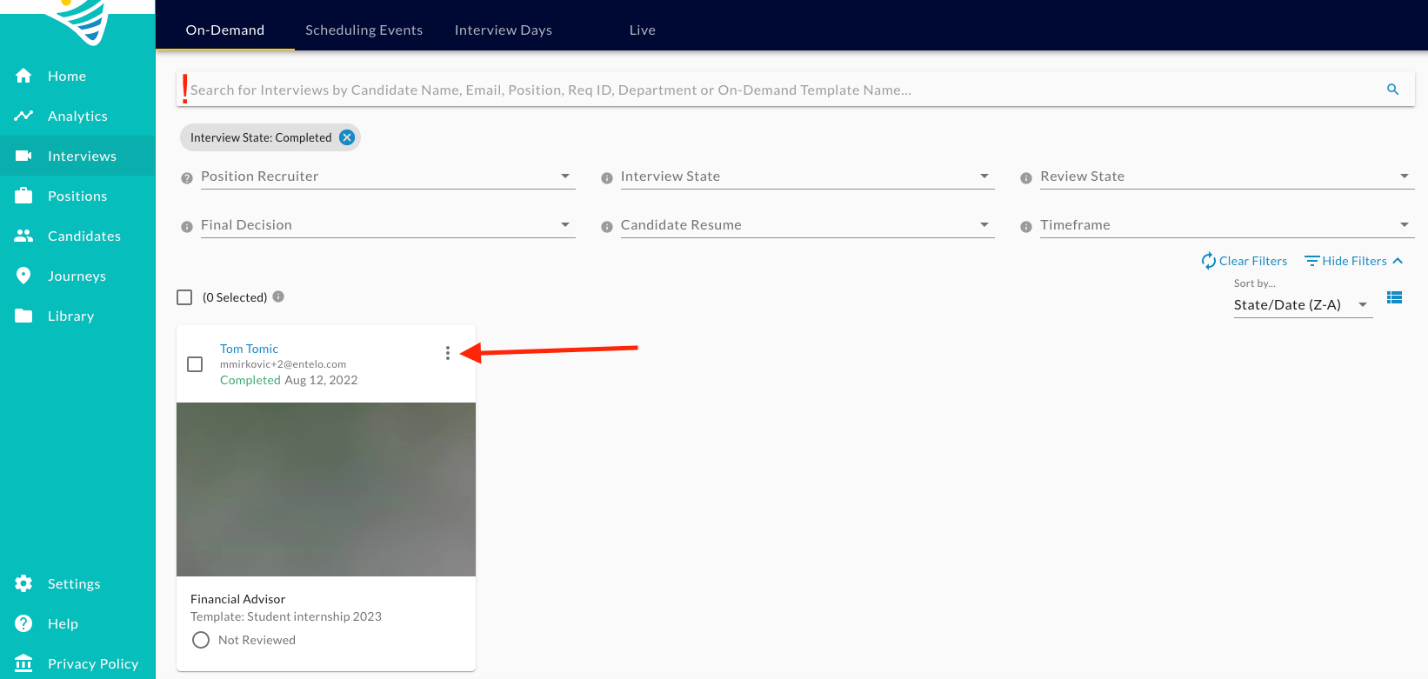
- Search for the candidate in question by using the Search box.
- Click the 3 vertical dots next to the Candidate's name.
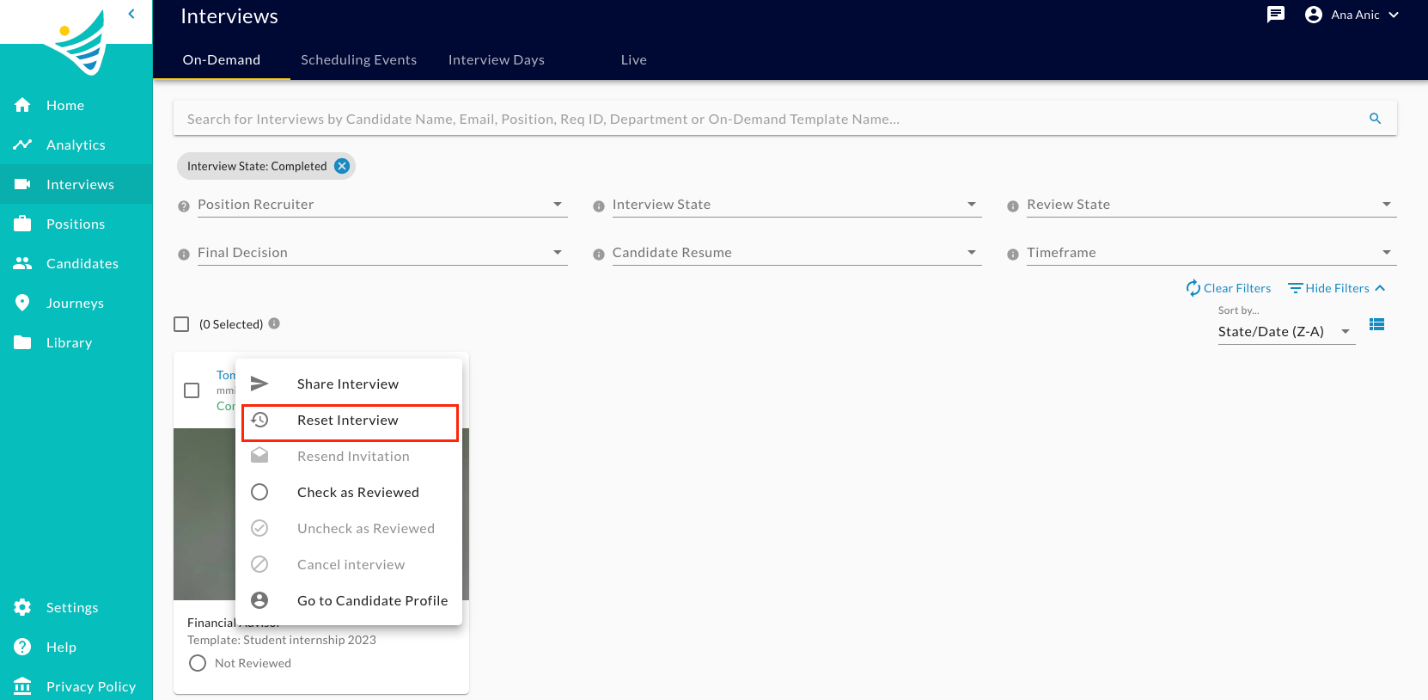
- Click on the Reset interview button.
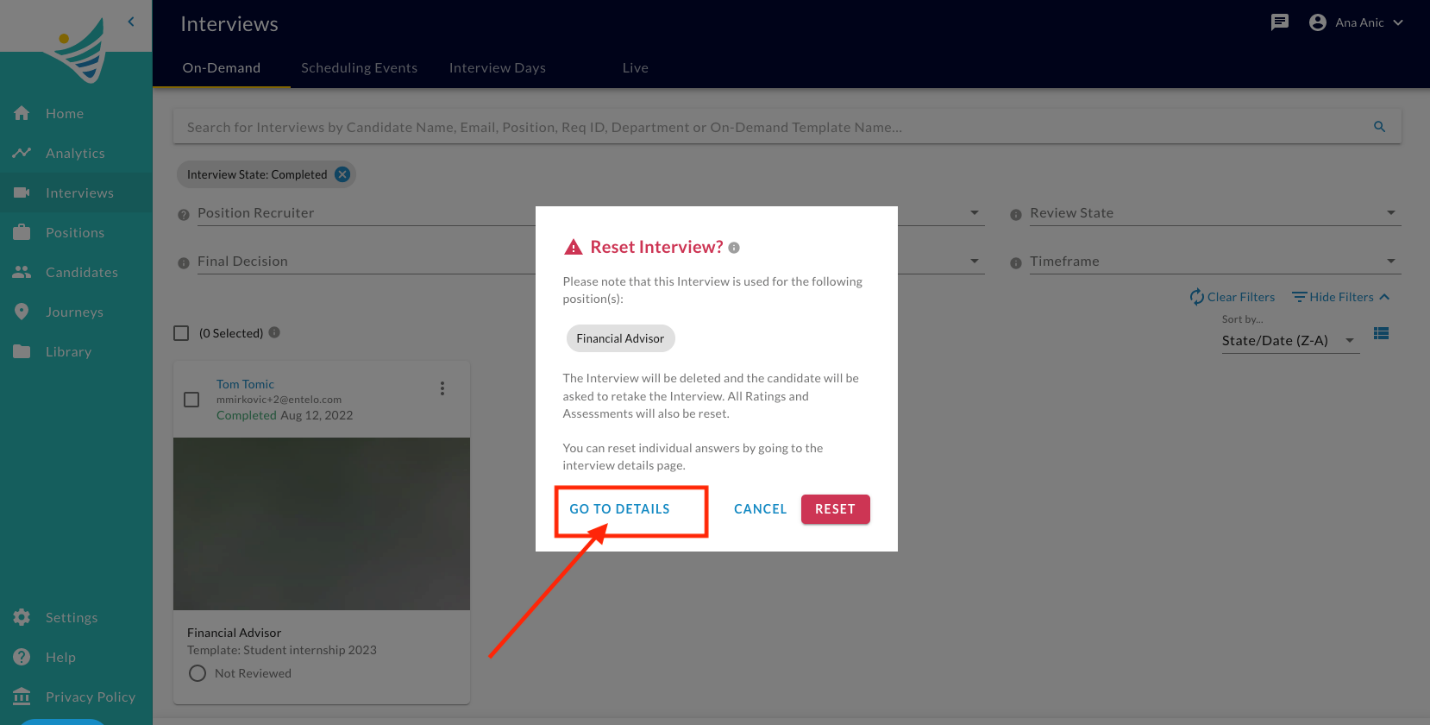
- You will see the pop-up window like the following. Please click on the Go to details button.
- In the upper right-hand corner, you will find the Reset interview option.
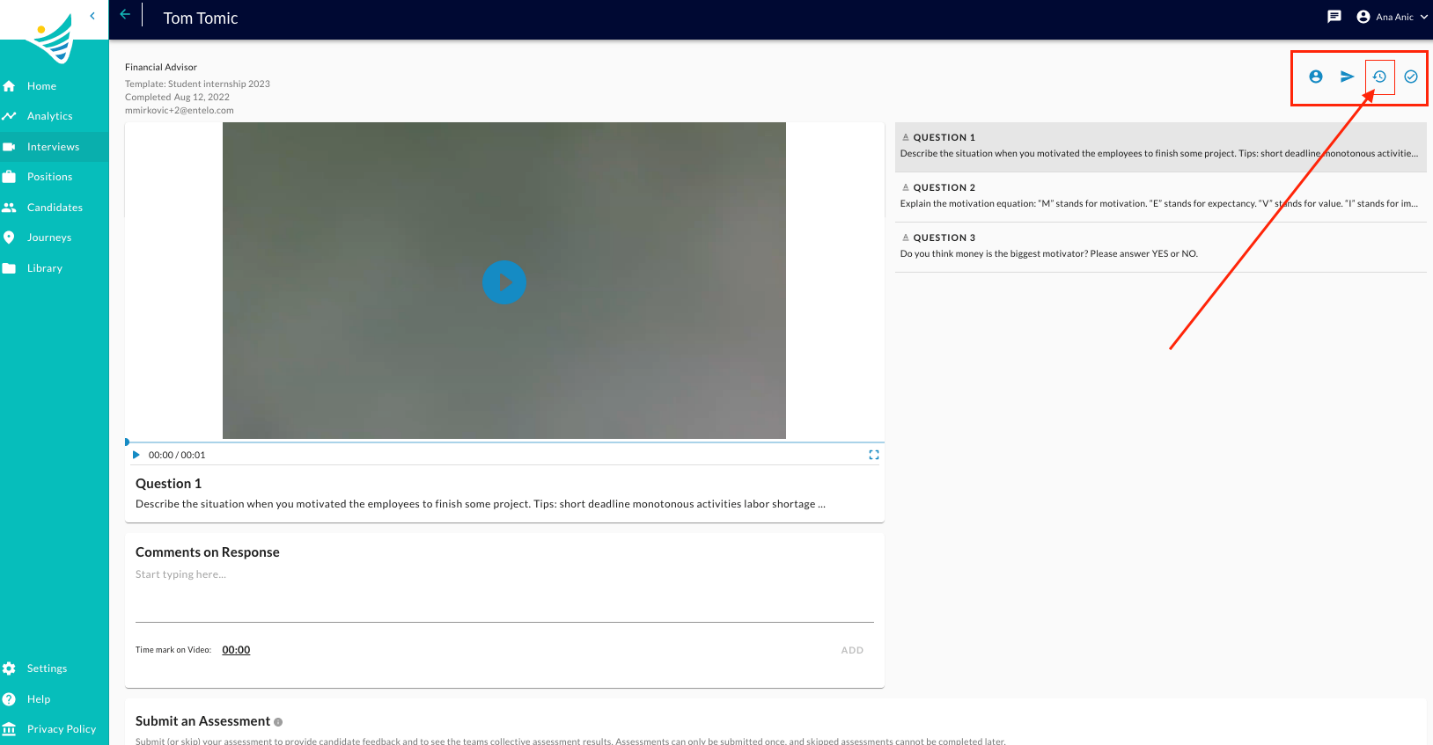
- By clicking on the Reset interview, a new window will pop up. From there you can select all answers or just a particular one.
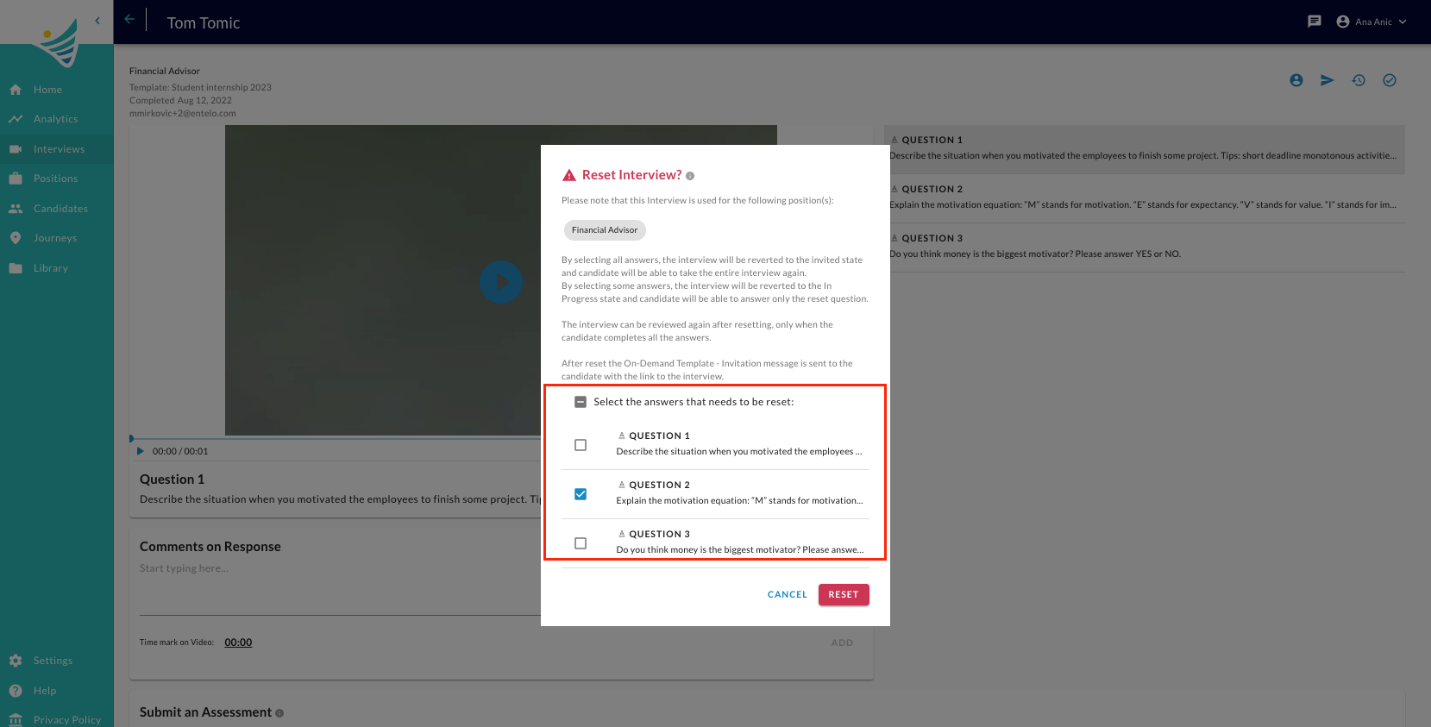
- If you are absolutely sure that you want to reset one, more, or all questions, click on the Reset button. Otherwise, click on the Cancel button.
Note that:
- By selecting all answers, the interview will be reverted to the invitedstate and the candidate will be able to take the entire interview again.
- By selecting some answers, the interview will be reverted to the In Progress state, and the candidate will be able to answer only the reset questions.
- After resetting the On-Demand Interview - An invitation message is sent to the candidate with the link to the interview.