How to Customize Messages
The Email and SMS editor allows customers to create content that is sent to candidates as they move through stages in the hiring process and as specific events are invoked (Digital Interviews, Scheduling Events).
Rich Text Editor
The rich text editor is used in multiple places.
- Email and SMS Editing for Journey Communications
- Email and SMS Editing for communications sent out as part of On Demand progression
- Email Editing for communications sent out as part of Scheduling event progression.
The same editor is also used in the setup of content for an On-Demand Interview:
- Intro and Closing Content
- Question Content
The list of formatting controls depends on the content you are editing:
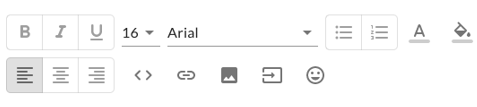
Standard SMS Editor
The editor used for SMS content does not include all the controls that would be available for rich text. Users can only drop in Emojis and Merge fields into the SMS editor. However, you can also attach up to one image to an SMS (either a logo or an image by specifying the image).
Text Formatting
- Text formatting: Bold, Italic, Underline
- Font formatting:Font size and Font Type
- List formatting: Numbered, Bulleted
- Color Formatting: Text Color and Text Background Color
- Text Alignment: Left, Center, Right
Drop-in an Image
You can use the image icon to drop in an image into the rich text editor.
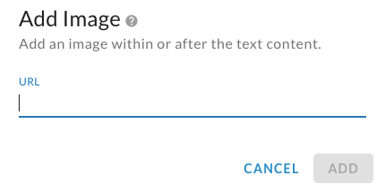
- To add an image, you will need to enter the URL to where the image is hosted.
- Once the image is dropped into the editor, it can be resized by dragging the lower right corner of the image. Only PNG, JPEG, and GIF images are allowed to be dropped in. The system will resize the image to 600 pixels wide if the source is larger than this.
Drop-in a Link
You can use the paperclip icon to drop in a link to a URL.
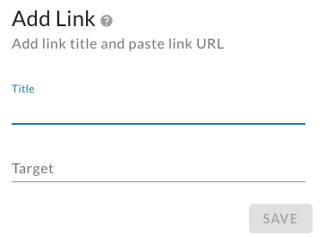
Specify a title and the URL in the Target field. The link will be dropped into the editor with the Title. Clicking on the title will open the link in a new window.
Drop-in a Button
You can use the button icon to drop in a button into the editor.
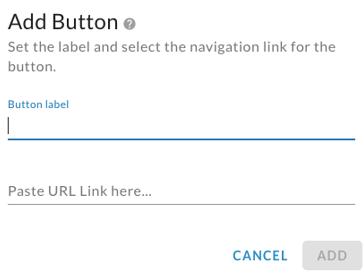
- Enter a label for the button
- For the URL, enter the full URL (including thehttp://).Click "Add" to drop in the button into the editor.
- Optionally, if you are in the editor for an On-Demand communication, click the "On Demand Interview" toggle to drop in a button for an On-Demand interview (you won't need to specify a URL for this option).
Merge Fields
Users can drop in a merge field using the icon. The following is the full list of merge fields to dynamically display content based on the context of the job application.
- Company Name
- Department Name
- Position Name
- Position ReqNumber
- Position Location
- Job Application Status
- Job Application Submission Date
- Job Application ReferralSource
- Candidate FirstName
- Candidate LastName
- Candidate EmailAddress
- On-Demand Interview URL
- On-Demand Template Name
- Scheduling Template Name
Emojis
Users can add in emojis in the editor. The user can select from a large list of available emojis.