How to Create a Hiring Team
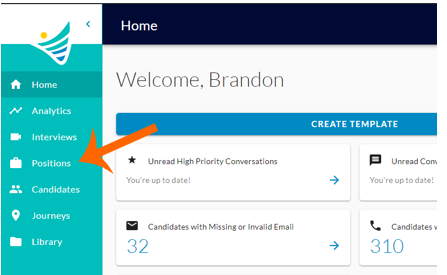
- You will start by clicking the "Positions" button on the left-hand side of the screen.
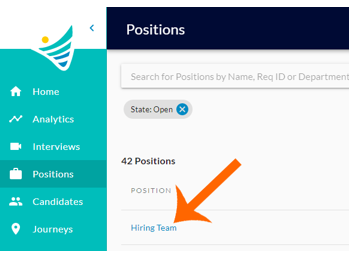
- Click the hyperlinked position name on the far left of the position’s box.
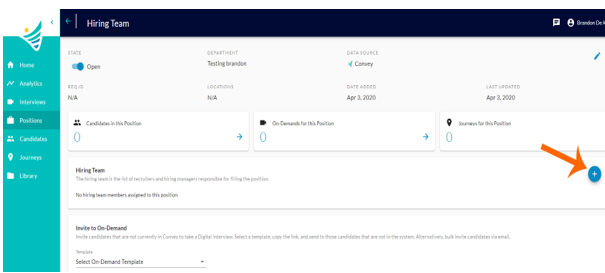
- Click the "+" button on the far left of the "Hiring Team" box.
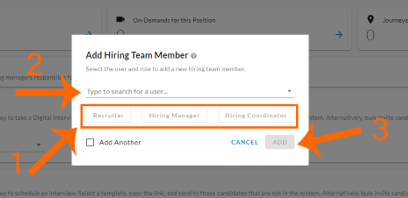
- Here you can add existing ConveyIQ users to your Hiring Team. You will start by selecting a role, and user. Once you have done that you can either select the "Add Another" checkbox to add more users or the "Add" button to finish setting up your Hiring Team.
After creating your Hiring Team you still have the ability to edit who is in your team.