Company Settings
Navigating the Settings Page
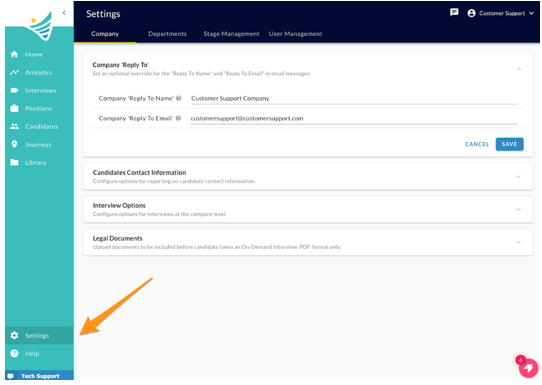
To navigate to the Settings page, click on the gear icon labeled "Settings" at the bottom left-hand corner of the navigation panel. Here you will find options to update Company level settings and User Management settings.
Company Settings
When updating your Company Settings, you will have options to edit the Company 'Reply-To', Candidates Contact Information, Interview Options, and Legal Documents.
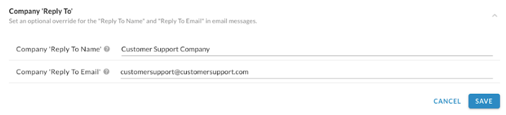
Setting the Company ‘Reply-To’
You can set criteria for the "Reply to Name" and "Reply-To Email" to populate the primary 'reply to' account for all email message communications that go out of the platform, to the candidates. For best practice, we would recommend you use a general recruiter email account that may be serviced by multiple team members. This allows for a better candidate experience than having email responses go to a ‘no-reply’ inbox and bounce back.
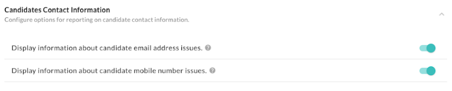
Candidates Contact Information
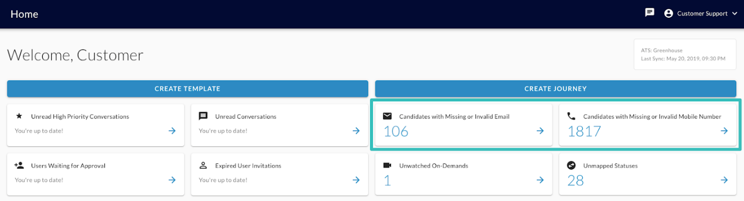
In this section, you can select your preferences regarding the means of communication with candidates. You can select both or one of the options: allowing "Display information about candidate email address issues." will enable sending information about invalid or missing email address per candidate to Candidate Pool and Candidate Profile pages, as well as statistic cards on the Home page, while enabling "Display information about candidate mobile number issues." will enable sending information about missing phone number per candidate to Candidate Pool, Candidate Profile and statistic cards on the Home page. Use the turquoise switch on the right-hand side to toggle these options on (turquoise) or off (grey).
On-Demand Interview Option
On-Demand Interview Settingsallows the client to invite the candidate to an already taken on-demand interview, when the candidate re-applies for the same position, or applies for a different position. In addition, this setting allows the client to allow or disable recruiters and hiring managers to leave comments on individual responses or make comments on the entire completed on-demand interview. This setting is useful if there is an internal policy where any commenting must be disabled. 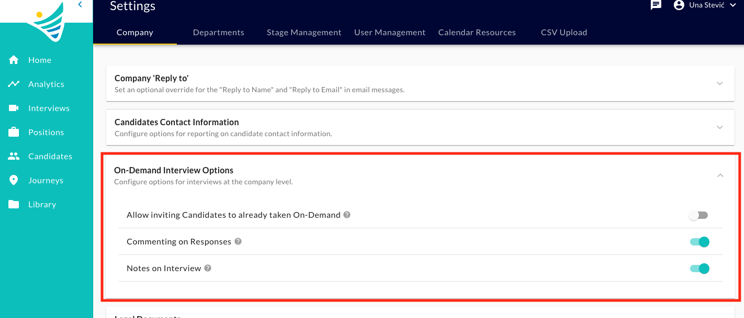
To learn more about this feature, make sure to check our On-Demand Interview Settingsarticle.
Legal Documents
The section for Legal Documents allows your company to provide documentation or conditions a candidate must consider and acknowledge prior to completing an On-Demand interview. This is generally company-specific, and it is optional (we would advise checking compliance requirements within your industry to see if a Transparency Notice is best practice). Use the blue plus icon to upload a new document. 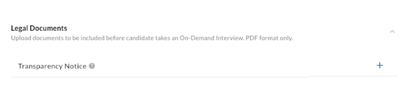
- Click on the paper icon to view the document that is currently in place.
- Click on the trash can icon to delete the document that is currently in place.
