Customizing Your Brand
Brand Assets
Brand Assets is a feature, configurable by the company, which will allow you to promote and define your branding and personalize all candidate-related communications and candidate facing applications by customizing the platform appearance and design.
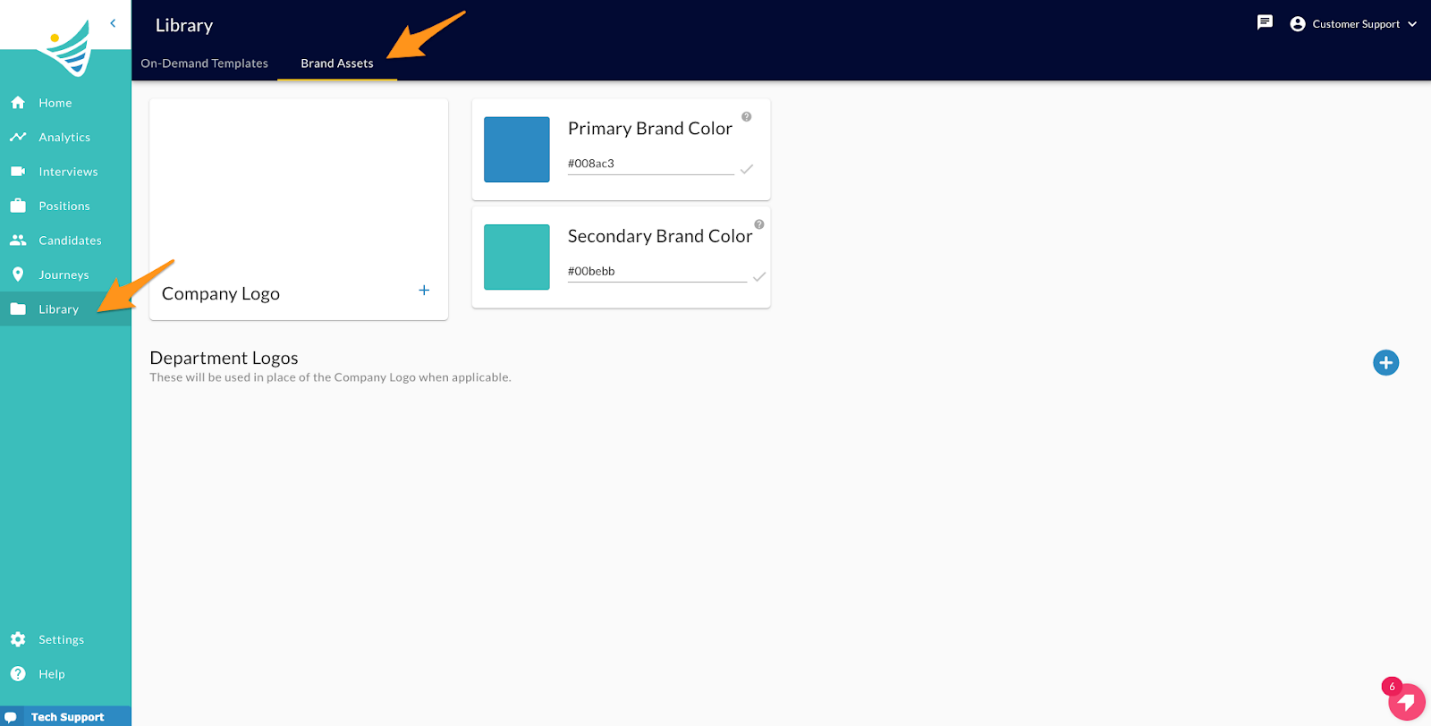
Brand Colors
You can specify up to 2 brand colors. The brand colors are entered in as Hex codes. You can change them by entering a hex code per your color choice in the field provided and click the checkmark to save. You will see a confirmation that appears as a snack bar in green at the bottom of the page when the color is saved.
The Primary Brand color is used in the following places:
- Email Communications: Buttons added to email communications will use the primary brand color (button labels will be white or black which is automatically calculated based on contrast color)
- Candidate On-Demand App: Main navigation and header text color
- Messages Portal Application
- Candidate Scheduling App
The Secondary Brand color is used in the following places:
- Candidate On-Demand App: Text links, help links
- Messages Portal Application
- Candidate Scheduling App
Logos
You can specify a company logo as well as department-specific logos. The logos are used in communications (email and SMS) as well as candidate facing apps.
In order to specify your company logo, click the "+" icon (a popup window allowing you to drag and drop or select an image will appear).
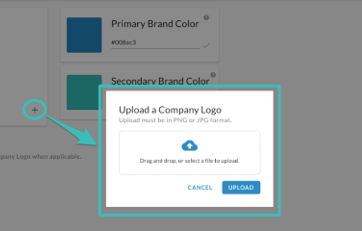
Note: Only jpeg or png images that are 5MB in size or less can be uploaded (best if it is at least 50 pixels in height and 320 pixels in width). The reasoning is to ensure that the images are deliverable to your candidates via text message.
If you want to use a different logo for a particular department, click the "+" icon. Then, select the department which you want to upload the logo for.
Note: You can only have one logo per department.
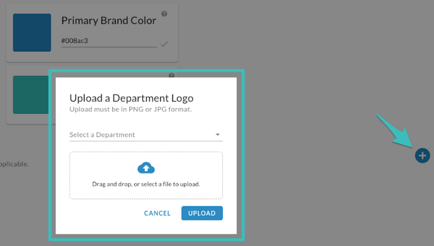
When your logos are uploaded, the system will first attempt to use the department logo in candidate facing communications or applications. If there is no department logo, the system will attempt to use the company logo. However, if there is no company logo uploaded either, the system will instead display the company name to your candidates.