Photo matching
E-Verify photo matching prompts you to compare the employee’s photo document with a photo displayed during creation of the E Verify case. This helps ensure that the document the employee provided matches records available to DHS. Four List A documents initiate a photo matching process:
- United States passport
- Passport card
- Permanent Resident Card (Form I-551)
- Employment Authorization Document (Form I-766)
For the photo matching process, Rival Workflow brings in and displays the image that USCIS provides.
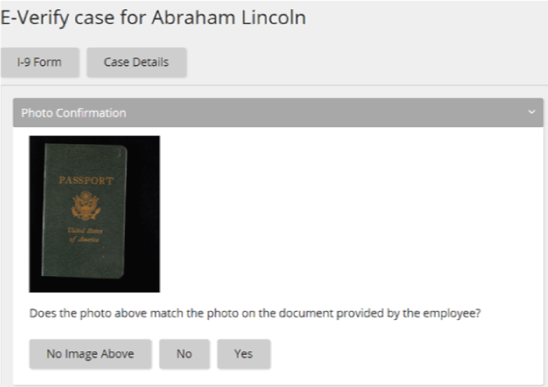
You must indicate if the photo on the document presented by the new employee matches the image supplied by the USCIS. The options:
- Yes: The photo on the employee’s actual document or a copy matches the photo displayed by E-Verify. Clothing, hair style, facing direction and appearance on the card should be identical to the photo displayed by E Verify.
- No:The photo on the employee’s actual document or a copy does not match the photo displayed in E Verify.
- No Image Above: No photo was displayed for the E-Verify user to compare with the employee document provided. This option should be selected when E-Verify either displays no photo or it displays an image of something other than a photo of a person, such as an image of a document.
If you select No or No Image Above, you are prompted to upload an image of the front and back of the document that the employee provided.
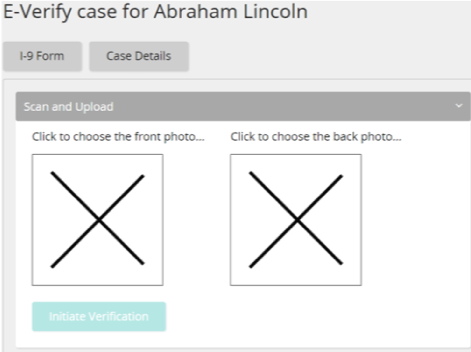
Click on each place holder to upload an image.
After the images are uploaded, the processing of the case can continue.
Note: Each file must be a jpg, pdf, or png file that is no larger than 4 MB.