Profile tab
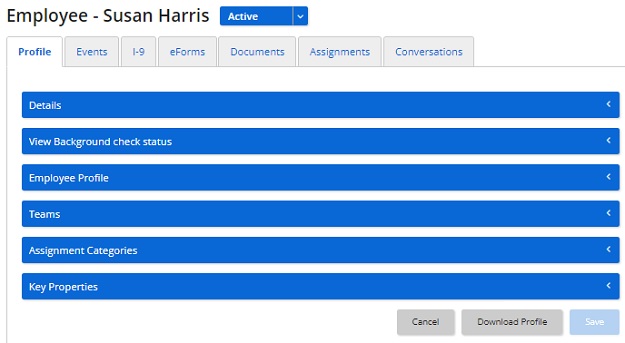
The Profile tab includes the following collapsible sections to make changes to the employee:
Fields
Details
First Name* Enter the employee's first name.
Middle Name Enter the employee's middle name.
Last Name* Enter the employee's last name.
Preferred Name Enter the employee's preferred name if they have one.
Email* For new hires, enter a current email address. The email is used for task notification messages. Based on your notification settings, a Welcome email is automatically sent to this address, notifying the user of their password. The Welcome email is sent immediately after successful creation of a new user.
Hire Date Optional field but recommended for all employees.
Termination Date Termination date can be entered here or enter the termination date through the Retire User button. If the termination date is entered here, you must choose Retire User to expire an employee's login id. The termination date is used for archive/purging rules regarding your company's legal obligation to retain I-9 forms on file.
Employee ID Employee_HRISID contains the unique employee identifier in any other external system. Some corporate environments have a personnel number.
Authentication Type Select:
Login ID An employee's login id is defaulted to First Name.Last Name. The Login ID defined is used to log in to the system as well as the portal. With the proper privilege you can change an employee's login ID.
SSO ID Enter an SSO ID.
Password (Required only if Authentication Type is Standard) Enter a password. The password must not contain spaces. It cannot be equal to the login ID.
Confirmation Password (Required only if Authentication Type is Standard) Re-enter the password.
Auto Generate Password (Required only if Authentication Type is Standard) Select this option to allow this application to create a random password for the new user.
Force Password Change (Required only if Authentication Type is Standard) Select this option to require a new user to change password at first-time sign in. User is prompted for original password, new password, and confirmation of new password.
Do Not Purge Controls whether the user can be purged from the system. If selected (checked), the user cannot be purged from the system.
User Preferences
Select PDF processing Select how PDFs are processed:
View Background Check Status
(Only available if you implemented background check functionality)
This is where you track, view, and manage any employee's background checks. If any background checks are performed on the employee, they appear in this section.
You must have the View Background Check Status privilege to access this section.
The data grid shows each background check request along with status, request number, vendor, date and time requested, and last updated. Here are the statuses:
Employee Profile
Teams
Not all employees belong on teams. Team membership applies only to employees providing some service (task completion or oversight) to other employees. It does not apply to employees who participate only as event benefiters.
Adding an employee to a team:
If an employee is not added to a team, they do not have access to the My Tasks tab and event portals for each event launched on their behalf.
Assigned Categories
Assignment categories apply to providers. Providers complete tasks on behalf of others. They do not apply to benefiters. Benefiters are employees who benefit from tasks.
Value matching between the assignment category and event categories generates tasks at the time the event is launched. The assignment category values determine who the task is assigned to (based on the rules of the task definition).
Default assignment categories are Location, Department, and Job Type. Categories and category values are specific to your implementation.
Key Properties
Key properties help identify and locate employees. Key properties are subdivided into these types:
Examples of using employee key properties as search filter criteria are if:
Key properties may be optional or required based on your implementation.
Adding key properties is a two-step process:
Add Event
Select an existing work event for this employee. Tasks are generated based on the event and category assignments.
Work events apply to new users who will benefit from tasks being created on their behalf. Employees who are typically entered as new users without work events are assignees, managers, and internal systems support.
Notes
Content recovered from the legacy Help Center on 2026-09-14 and not yet reviewed against the current product. Source: https://srt-onboarding-help.silkroad.com/#/home/32740/en/std