Jumpstart Your Reporting: Common Use Cases
These common reporting scenarios can help you get started. Each example includes suggested fields and filters to help you quickly build a meaningful report — whether you're monitoring learner progress or evaluating content engagement.
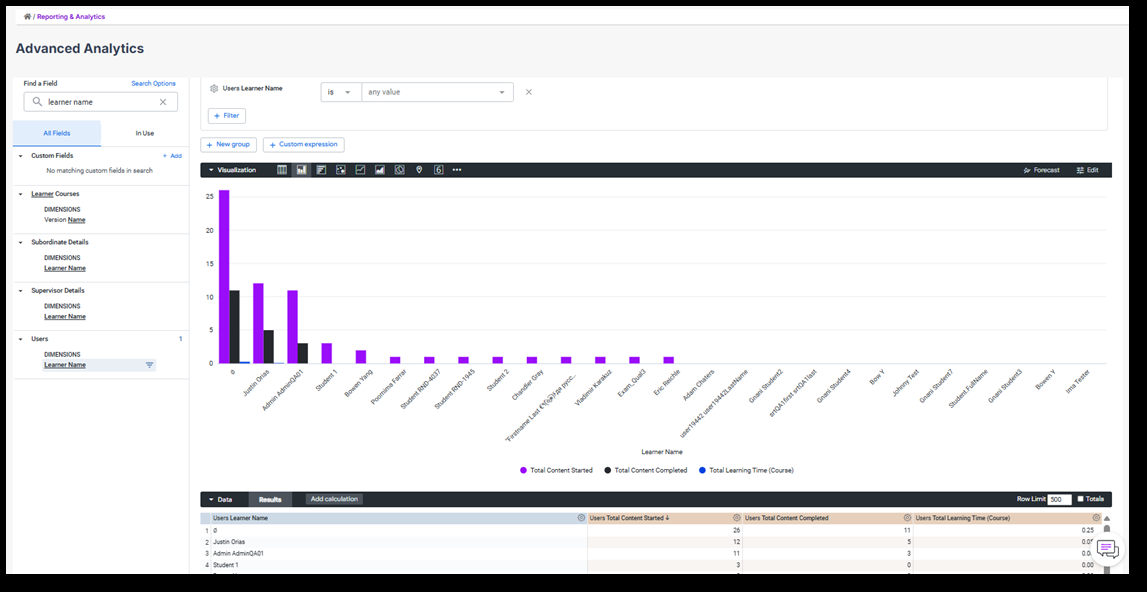
Learning Activity Report
What it shows: A summary of each learner’s activity, including the number of content items they’ve started and completed, and time spent in courses.
Use this when: You want a high-level view of how individual learners are engaging with assigned training.
Steps to build:
- Add Learner Name from the Users section
- Add Total Content Started, Total Content Completed, and Total Learning Time (Course) from the Users section
- (Optional) Add a filter for Learner Name to focus on a specific user or group
- Click Run
What you'll see: A list of learners with their activity totals — great for spotting who may need reminders or support.
Learner Course Activity Report
What it shows: Detailed progress for each learner in a specific course, including when they started and mastered the content and how long they spent on it.
Use this when: You want to track learner engagement and progress for specific courses.
Steps to build:
- Add Course from the Course Activity section
- Add Learner Name from the Users section
- Add Learner Course Start Date, Learner Course Mastery Date, and Time in Course from the Course Activity section
- (Optional) Add a filter for Course or Learner Name
- Click Run
What you'll see: A breakdown of learner activity by course — useful for identifying who hasn’t started, is in progress, or completed the course.
Course Activity Summary Report
What it shows: A high-level overview of how each course is performing, including how many learners started and completed it, and the total time spent.
Use this when: You need to evaluate course effectiveness or compare engagement across multiple offerings.
Steps to build:
- Add Course from the Course Activity section
- Add Total Learners Started (Course), Total Learners Completed (Course), and Total Time in Course from the Course Activity section
- (Optional) Add a filter for Course
- Click Run
What you'll see: Summary-level course insights that help you spot high- and low-performing content at a glance.