FAQ: Common learning journeys questions
Can certification and re-certification rules be added in content properties for content within a learning journey?
- Yes
Requirements include any licenses, certifications, or requirements that are needed but are not acquired by the student within Rival Learn. Rival Learn can include requirements in a learning journey and track the accomplishment of these items.
For example, Senior Administrative Assistants at WorldCo are required to have or obtain a Microsoft Office User Specialist Certification. This certification is obtained through Microsoft and WorldCo is making this certification part of a qualification for this job.
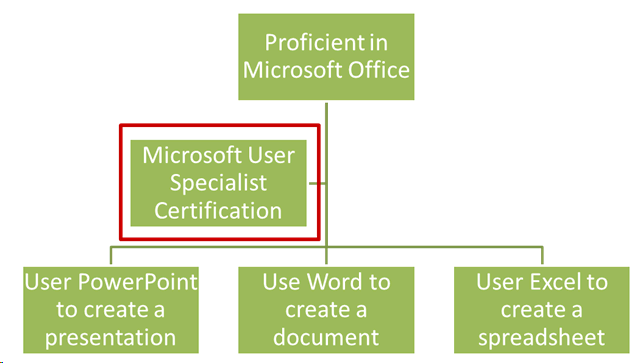
To add requirements, go to Learning > Direct > Requirements.
- Add a title to the Requirement.
- Add a reference to the requirement.
Save your work.
Let’s take a look at how competencies can be added to learning journeys.
Go to Learning > Direct > Learning Journey. Search for the desired learning journey and click on the Properties icon.
Scroll down to Competencies and click Add.
In the pop-up window, click the Competency spyglass icon to add the competency to the learning journey. Search for the desired competency, and click Add.
Scroll to Requirements and click Add.
In the pop-up window, click the Requirement spyglass to add the competency to the learning journey. Search for the desired requirement and click Add.
Scroll to Content and click Add. In the pop-up window:
- Select the Content Type.
- ECourse
- Training Activity
- Exam
- Assignment
- Click the spyglass, search for the desired content, select it, and click Confirm.
Note: You can set Certification Rules, Recertification Rules, and a Required Mark within this properties window, if appropriate.
Scroll to Membership Inclusion and click Add in the appropriate section (i.e. jobs, job categories, organizations, etc.) In the pop-up window, search for the desired item and click Confirm.
Your selection is displayed in the appropriate Inclusion section.
After you have made your selections, click Add to save your Learning Journey.
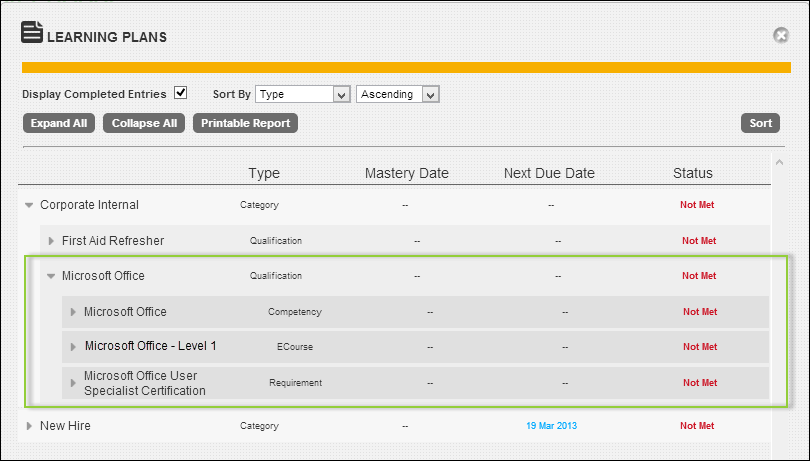
Now, when any HR Administrator logs in to Rival Learn and clicks Learning Journeys, the Microsoft Office learning journey appears.
How to troubleshoot learning journeys in which 1 or 2 users did not receive the training even though they are a member of the inclusion metrics.?
- Check to see if the user(s) has a prior completion of that course and there are no re-certification rules
- Check and make sure the user(s) who are not a member of all metrics if multiple are selected (AND relationship for Inclusion)
- Check if a membership cut-off date is being used, users who were added to the learning journey after the mandatory cut off date
How to attach an equivalency to a competency?
Competencies identify the knowledge and skills expected for a job. Competencies can be assessed for individual students by marking the competency as being mastered.
This enables the assignment of learning activities as employees advance or change positions within the company, as Rival Learn tracks which competencies have been mastered.
Optionally, competencies can be associated with Performance Objectives and corresponding Enabling Objectives (see illustration above). To add Enabling and Performance objectives to Rival Learn, see the Table of Contents – Session 4 for "Adding Enabling and Performance Objectives to Rival Learn."
According to our task analysis, a person with this job should be competent using Microsoft Office.
To add competencies, navigate to Learning > Direct > Competencies:
- Add a title to the competency.
- Add a reference to the competency.
- Add a category (optional).
- Determine how the competency is to be evaluated and type that description in the text box.
- Determine the criteria to use to evaluate the competency and type that information in the text box.
- If needed, add the equivalencies that support and help the student fulfill the competency. Equivalencies are used to identify content that equally satisfies a training need or objective. They can be ecourses, training activities, assignments or requirements. For example, if you want to give the student the option to take an ecourse or a training activity to satisfy this competency, add both content types to the equivalency area.
- Click Add at the top of the properties page to save your selections.
Rebuilt from the legacy Help Center on 2026-10-01: the Flare copy repeated its steps. Not yet reviewed against the current product. Source: https://srt-learning-help.silkroad.com/#/home/27829/en/std