Dynamic date filters in reports
You can set and save a dynamic date filter for any report that uses a date to filter data in a report.
Setting a dynamic date filter
To set a dynamic date filter, select any one of the date choices in the drop down date filter. The Mastery Date filter in the SR Student History Report is shown as an example:
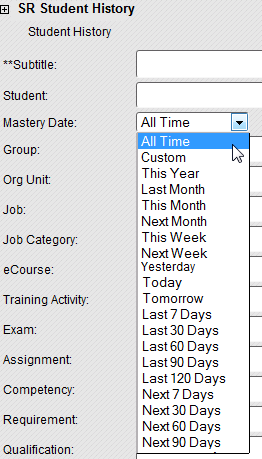
By selecting a dynamic date filter and saving it, you can create dynamic reports that filter data based on a date choice relative to the current date.
List of dynamic date filters
Rival Learn has the following dynamic date filters.
| Date filter | Description |
|---|---|
| All Time | No restrictions based on date. |
| Custom | Allows entering a specific date range from one date to another date |
| This Year | Current calendar year: January 1 of current year to December 31 of current year. |
| Last Month | Previous month: first day of last month to last day of last month |
| This Month | Current month: first day of current month to last day of current month |
| Next Month | First day of next month to last day of next month |
| This Week | Current Week: start of day on previous Sunday to end of day on next Saturday |
| Next Week | Next week: start of day on next Sunday to end of day on next Saturday+ 1 week |
| Yesterday | Start of day yesterday to end of day yesterday |
| Today | Start of day today to end of day today |
| Tomorrow | Start of day tomorrow to end of day tomorrow |
| Last X Days | Start of day today minus X days to the end of day today |
| Next X Days | Start of day today to the end of day today plus X days |