Training Event Scheduling Rule Properties page
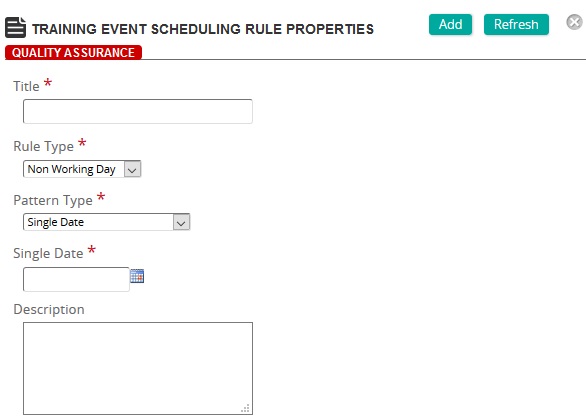
On this page, you can create a scheduling rule to override an existing global scheduling rule or if there are special circumstances that require the event to be scheduled differently.
Title: Type a title that describes the rule.
Rule Type: Select one of the following rule types:
- Non-Working Day - This rule type allows non-working days to be defined within an organization. Various Pattern Types can be used to block out a specific day or date range that training CANNOT take place, in addition to the global rules that apply.
- Non-Working Time - This rule type defines the actual time (in hours) for a specific date range that training CANNOT take place, in addition to the global rules that apply.
- Business Hours - This rule type can be used to change the normal business hours of operation for an event. Business hours can be set for a specific day or other pattern where training CAN take place. (Change the normal business hours from 8:00 to 5:00pm to 9:00 to 4:00pm, for example).
- Mastery Date - This rule type can be used to override a global rule for an event. For example, the Global Calendar Rule for New Year's Day can be overridden as a work day for refinery maintenance.
Pattern Type: Select one of the following:
- Single Date - if the rule applies for a specific date on the calendar.
- Day of the Week - if the rule applies for a specific day of the week and repeats for a set number of weeks or longer.
- Day of the Month - if the rule applies for a specific day of the month and repeats for a set number of months or longer.
- Work Week - if the rule applies only to the defined work week (e.g. Monday to Friday).
- Full Week - if the rule applies to the full week (Sunday to Saturday).
- Date Span - if the rule applies to a specified Date span.
Note: The remaining fields on this page vary based on the rule type and pattern type that you selected. Complete the fields as appropriate.