Assignment Properties page
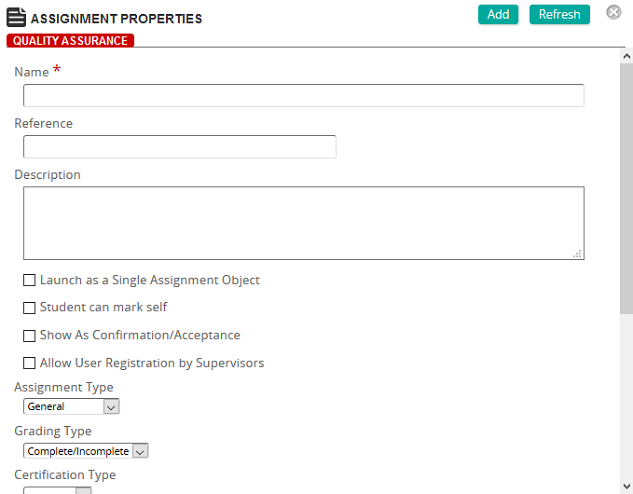
The Assignments Properties page contains the details about a particular assignment. You access this page when you are creating an assignment or changing the properties of an existing one.
Fields
Name: Enter a name for the assignment.
Reference: Enter a reference to help identify the assignment when searching.
Description: Enter a text description for the assignment.
Launch as a Single Assignment Object: Select this check box if you want users to launch an assignment directly from their Training page as if it were an online training course.
Student can mark self: Select this check box to allow the student to self-mark the assignment.
Show as Confirmation/Acceptance: Select this check box to activate a confirmation to the student.
Allow User Registration by Supervisors: Select this check box check box to control what assignments are exposed to the Supervisor Registration function.
Assignment Type: Select one of these options:
- General: Assignments created in the Administration portal that are reused for multiple users.
- Ad Hoc: Assignments created by a supervisor and assigned specifically to a single user in the Supervisor portal.
- Student Ad Hoc: Assignments created by students.
Grading Type: Select a grading type. Typical options include:Complete/IncompleteChecklistPercentage
- Grading Type: Select a grading type. Typical options include:Complete/IncompleteChecklistPercentage
Checklist (only if Grading Type is Checklist): Click  to search for and select a checklist to associate with the assignment.
Checklist Assessed by (only if Grading Type is Checklist): Select who can see the assignment and assess/grade this checklist in the Student Portal. Options include:
- All Experts: Any user who has the Expert user role assigned can see the assignment and assess/grade the checklist.
- Membership: You can restrict which expert users can see the assignment and assess/grade this checklist by using membership groups. In the Checklist Expert Membership box, select the membership groups that can see the assignment and assess the checklist.
- Certification Type: Select a default certification type to define the certification and recertification time periods to meet a learning journey condition.
Objective: Select  to select an objective to associate with the assignment.
Categories: In the Available list, select one or more categories and then click the left arrow to move them to the Assigned list.
Links: Click View Links to see any associated links to content, competencies, or prerequisites.
Creation Date: A display-only field that shows the date the assignment was created.
Creation By: A display-only field that shows the user who created the assignment.