User Properties page
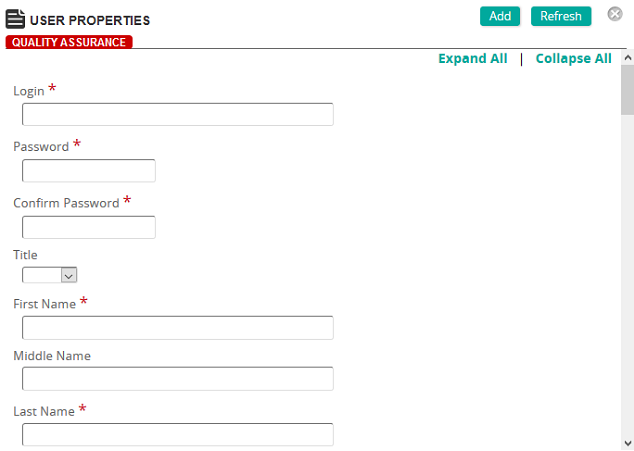
On this page, you define properties for a user.
Fields
Login: Type a login ID.
Password: Type a password.
Confirm Password: Re-type the password you entered in the Password box.
Title: Select a title.
First Name: Type the first name of the user.
Middle Name: Type the middle name of the user.
Last Name: Type the last name of the user.
Full Name: Type the full name of the user.
Email: Type the email address of the user.
Force Profile update on next login: Select this check box to force the administrator to update profile at next login.
Authentication
Use External Authentication: If you want to use external authentication, select this check box.
Force Password Change on next login: To force a password change for the user on the next login, select this check box.
User Roles
User Roles: Select the check box of the appropriate user role for the user.
Preferences
Language Preference: The language the user prefers to use for communications.
Email Format: The default email format. The options are:
Organizational
Employee ID/Reference: Type a unique identifier for the user.
Start Date: Click the box or calendar icon to select a start date. This date is typically the date the user is added in Rival Learn.
Termination Date: If the user no longer needs access to Rival Learn (such as when terminating employment), click the box or calendar icon to select a termination date.
Status: Select Active or Inactive . A user that is inactive in Rival Learn cannot access any information.
Status Description: Type any additional information to describe the user's status such as retired, on leave, and so on.
Supervisors: Click Add to add supervisors. Click Removed Selected to remove the selected supervisors from the table. Click Mark All to mark all of the supervisors in the table as selected.
Subordinates: Click Add to add subordinates. Click Removed Selected to remove the selected subordinates from the table. Click Mark All to mark all of the subordinates in the table as selected.
Contact Information
Enter any additional contact information if required.
Personal Information
Birthdate: Click the box or calendar icon to select the user's birthday from a calendar pop-up.
Gender: Select the user's gender from the list.
Notes: Type any additional notes if applicable.
Content recovered from the legacy Help Center on 2026-09-14 and not yet reviewed against the current product. Source: https://srt-learning-help.silkroad.com/#/home/18569/en/std