Preview a content object
- From the navigation bar, click Content>Authoring/Staging/Library>Content Objects.Tip: The location of the content object depends on its status.The Content Objects page opens.Use the filter(s) to search for the desired content object.
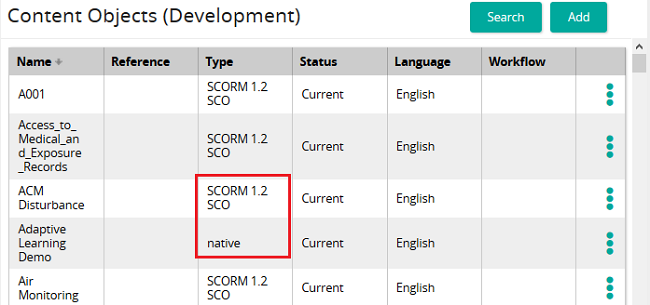 Note: Notice that both native and SCO objects are listed in the table.
 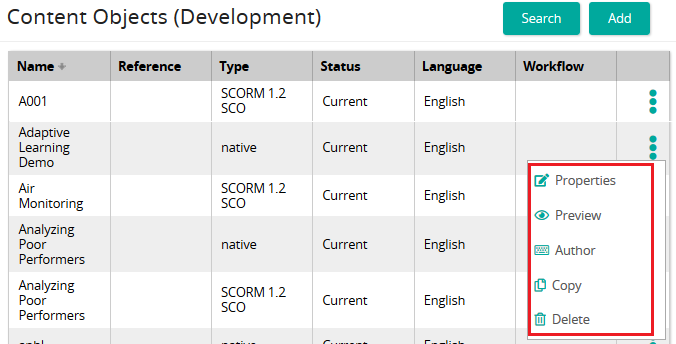 Click
Click  and click Preview. In the pop-up window, select a skin, language, and required mark. Click View. A new window opens and the course is displayed as a student would view it.
From the navigation bar, click Content>Authoring/Staging/Library>Content Objects.Tip: The location of the content object depends on its status.The Content Objects page opens.Use the filter(s) to search for the desired content object.
Note: Notice that both native and SCO objects are listed in the table. Click and click Preview. In the pop-up window, select a skin, language, and required mark. Click View. A new window opens and the course is displayed as a student would view it. - From the navigation bar, click Content>Authoring/Staging/Library>Content Objects.Tip: The location of the content object depends on its status.The Content Objects page opens.Use the filter(s) to search for the desired content object.Note: Notice that both native and SCO objects are listed in the table. Click and click Preview. In the pop-up window, select a skin, language, and required mark. Click View. A new window opens and the course is displayed as a student would view it. From the navigation bar, click Content>Authoring/Staging/Library>Content Objects.Tip: The location of the content object depends on its status. The Content Objects page opens.Use the filter(s) to search for the desired content object. Note: Notice that both native and SCO objects are listed in the table. Click and click Preview. In the pop-up window, select a skin, language, and required mark. Click View. A new window opens and the course is displayed as a student would view it.
From the navigation bar, click Content>Authoring/Staging/Library>Content Objects.Tip: The location of the content object depends on its status.The Content Objects page opens.Use the filter(s) to search for the desired content object.
Note: Notice that both native and SCO objects are listed in the table. Click and click Preview. In the pop-up window, select a skin, language, and required mark. Click View. A new window opens and the course is displayed as a student would view it.From the navigation bar, click Content>Authoring/Staging/Library>Content Objects.Tip: The location of the content object depends on its status. The Content Objects page opens.Use the filter(s) to search for the desired content object.
Note: Notice that both native and SCO objects are listed in the table. Click and click Preview. In the pop-up window, select a skin, language, and required mark. Click View. A new window opens and the course is displayed as a student would view it. - From the navigation bar, click Content>Authoring/Staging/Library>Content Objects.Tip: The location of the content object depends on its status.The Content Objects page opens.Use the filter(s) to search for the desired content object.Note: Notice that both native and SCO objects are listed in the table. Click and click Preview. In the pop-up window, select a skin, language, and required mark. Click View. A new window opens and the course is displayed as a student would view it.