Define a shortcut
Shortcuts appear as tiles on the Admin homepage and are dynamically displayed based on all workgroup memberships. You do not have to select the specific workgroup role to be able to view the associated shortcuts. Selecting a shortcut tile or selecting a shortcut menu item automatically navigates to the Admin location defined for the shortcut.
To define a shortcut for a workgroup, perform the following steps:
- On the Workgroup Properties page, from Shortcuts, click Add. The Shortcut Properties page opens.
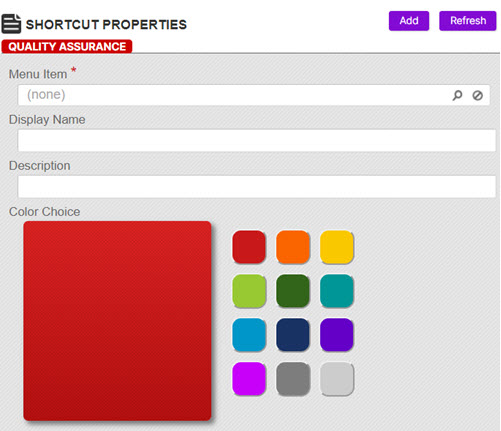
- In the Menu Item box, search for and select a tab path.
- In the Display Name box, type a name for the shortcut.
- In the Description box, type a description for the shortcut title.
- Select a display color.
- Click Save.