Content Import page
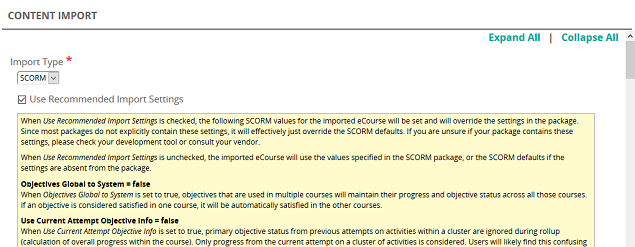
The Content Import page allows you to import SCORM or AICC zip files (content objects) into the Rival Learn Library.
After you import a SCORM (v 1.2 or 2004) or AICC content object, it is important that you validate the activity settings within the content object to ensure that the objects used to set the mastery or completion have the correct settings. Some imported objects do not set these values correctly, so this ensures students completing the object cannot master or complete the object until all required objects are complete.
Fields
Import Type: Select either:
- SCORM
- AICC
- Use Recommended Import Settings: (SCORM only) Leave this check box selected. These are the most common setting for most imported objects to optimize how users view content in Rival Learn.
Note: Refer to the SCORM Sequencing and Navigation section for detailed explanations on each of these settings.
Tip: To upload multiple SCORM packages, combine the multiple SCORM packages in a ZIP file and Rival Learn uploads and creates multiple courses at once.
SCORM Package File: Click Add Files to browse and select SCORM file(s) to upload. A progress bar shows the progress of each upload. Once uploaded, file name(s) appear along with a Delete button in case you need to delete and re-upload.
AICC AU (Assignable Units) File: (AICC only) Click Add File to browse and select the AICC assignable units file to upload.
AICC CRS (Course Interchange) File: (AICC only) Click Add File to browse and select the AICC course interchange file to upload.
AICC CST (Course Structure) File: (AICC only) Click Add File to browse and select the AICC course structure file to upload.
AICC DES (Descriptor) File: (AICC only) Click Add File to browse and select the AICC descriptor file to upload.
Course
Content Object