Create a learning journey required training notification
This notification lets a student know which courses have been assigned when they become a member of a learning journey. It is triggered by any new membership associated to the learning journey. The notification contains a summary of each certification in the learning journey.
From the navigation bar, click Enterprise.Under Community, click Notifications. The Notifications page opens.
Click Add.
On the Notifications Properties page, from the Event drop-down box, select Learning Journey Required Training.
In the Name text box, type the name for the event.
Select the Enabled check box.
Under Notification Period, set when the notification is to be sent.
Click To and select who receives notification.
On the Message Recipient window, select one of the following:
System Recipient (student or supervisor of student whose required training activation date was added or changed), then select a system recipient form the drop-down box.
User Defined Recipient (custom users), then type the display name in the Display Name text box and type the email address that is associated with the display name in the Email text box.
Click Set Recipient to add the System Recipient or Defined Recipient to the Message Recipient Entries list and click Save.
Click From.
On the Message Sender window, in the Display Name text box, type the name of the person the message is being sent from.
In the Email text box, type the email address that is associated with the Display Name.
Click Set Sender to add the Display Name and Email to the Message Sender Entries list. Click Save.
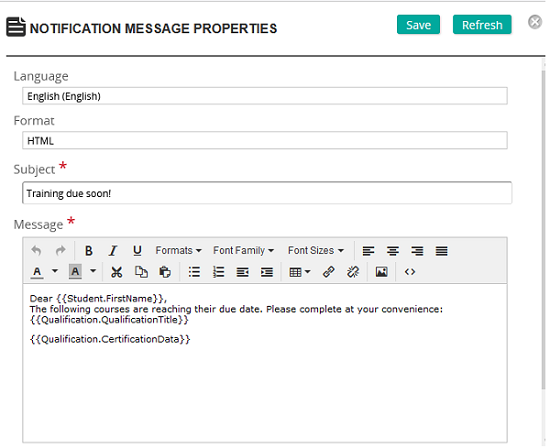
Under Message Options, select language and format. Click Create/Edit Message to create the notification message. The Notification Message Properties window opens.
In the Subject text box, type the subject of the message.
In the Message text box, type the notification message. Insert the appropriate merge tags. The key merge tag for this notification is {{Learning Journey.Certification.Data}}. It summaries the certification data that is part of the certification in one notification (email).
Click Save. Here is what a sample message may look like:
Under Restrictions, do one of the following:
Leave Applies to All checked. This training available notification applies to all courses.
Click (uncheck) Applies to All to make this notification course-specific. Select the course(s).