Using the Troubleshooting skin
Rival Learn provides a Troubleshooting skin that reads and displays the values for all objectives and conditions applied in the object.
Select the Troubleshooting skin from the preview content object window to view your object.
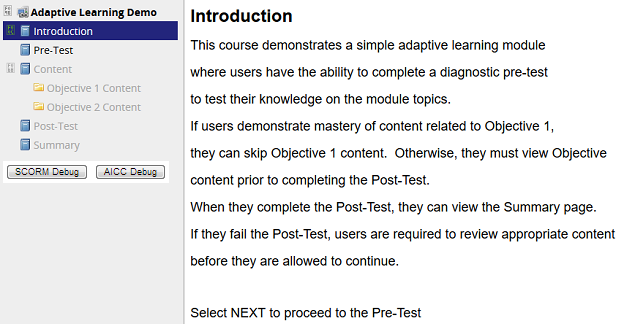
Select SCORM Debug to launch the SCORM Debug audit. This audit displays all data communication between a SCORM SCO and Rival Learn.
Select AICC Debug to launch the AICC Debug audit. This audit displays all data communication between an AICC SCO and Rival Learn.
Select the Information icon to the right of the tree item to view debug data for each activity.
The current status of all object objectives and sequencing rules are displayed for the selected cluster or leaf node. For example: