Grant access to the Analytics Summary dashboard
- Users do not have access to the Analytics Summary dashboard by default. They must be in a workgroup with assigned privileges to access.
- Access can be granular at the tile/chart level.
- From the navigation bar, click Enterprise.Under Admin, click Workgroups. The Workgroups page opens.
- Create a workgroup:
- Click Add. The Workgroup Properties page opens.
- Name the workgroup, for example Analytics Summary Group, and provide a description.
- Select a status.
- Select Administrator to create an administrator workgroup
- Complete the remaining fields as appropriate.
- Add the administrator users you want to have access:
- In the Administrators grid, click Add.
- Select the admin users and click Confirm.
- Set the privileges:
- Click Security Settings.
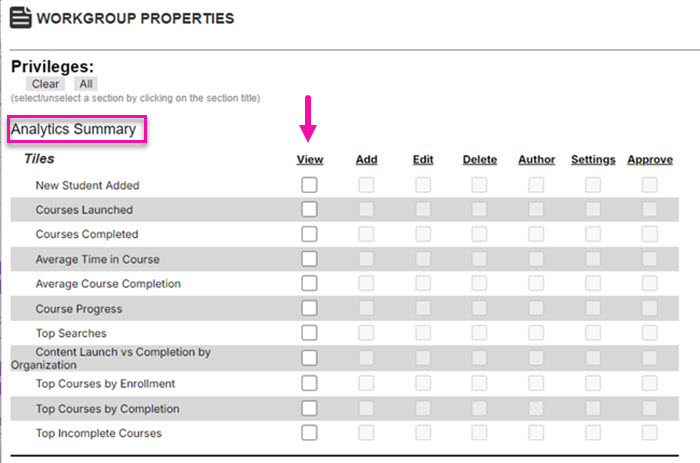
- On the Workgroup Properties page, scroll down to the Analytics Summary section under Privileges.
- For the tiles/charts you want to grant access to, click the View checkbox:
- At the top of the page, click Add.
- On the Workgroup Properties page, click Add.