Content Object Properties page
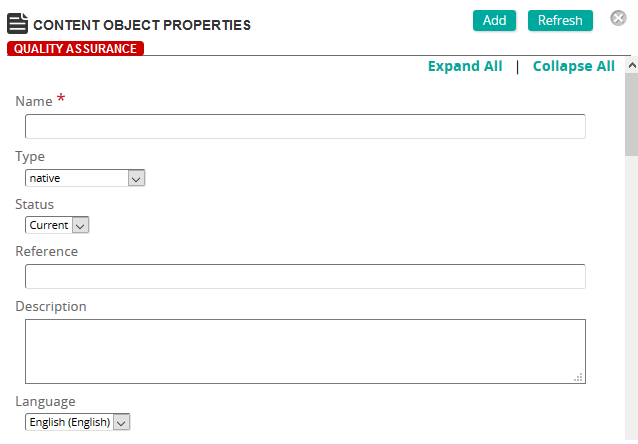
On the Content Object Properties page, you define the properties for a content object.
Fields
Name: Type a name for the content object.
Type: Select one of the following options:nativeSCORM 1.2 SCOSCORM 1.2 AssetSCORM 2004 SCOSCORM 2004 AssetAICC File-basedAICC Web-based
- Type: Select one of the following options:nativeSCORM 1.2 SCOSCORM 1.2 AssetSCORM 2004 SCOSCORM 2004 AssetAICC File-basedAICC Web-based
Reference: Type a reference for this item to make it easier to find in searches.
Description: Type a description for the content object.
Language: Select a language for the content object.
Version: Type the version number of the content object. Automatic increments of the content object version designator occur only if Concurrency Management is enabled.
Major Topic Area: Type the major topic for the content object.
Author Notes: Type notes for the content object.
Workflow: In the Object Version text box, type the version of the object.
Categories: To assign categories, click a category or categories from the Available list and use the arrow buttons to move them to the Assigned list.
Keywords: To assign a keyword, type a keyword. Click the left arrow to add the keyword to the list. Repeat for each keyword that you want to assign.
Features: Features are media items defined as features that can be associated to a content object. To add features, click Add. On the Features page, select one or more features or click Select All, and then click Confirm.
Glossary Terms: Glossary terms are automatically added to the eCourse glossary whenever a content object is used in an eCourse. To add glossary terms to the content object, click Add. On the Glossary Banks page, search for and select a glossary term or terms, then click Confirm.
Links: Click View Links to see any associated links to eCourses, training activities, or content objects.