Step 3: Link activity to content
Link the Activity to Content
Once the activity has been titled and the type of content has been selected:
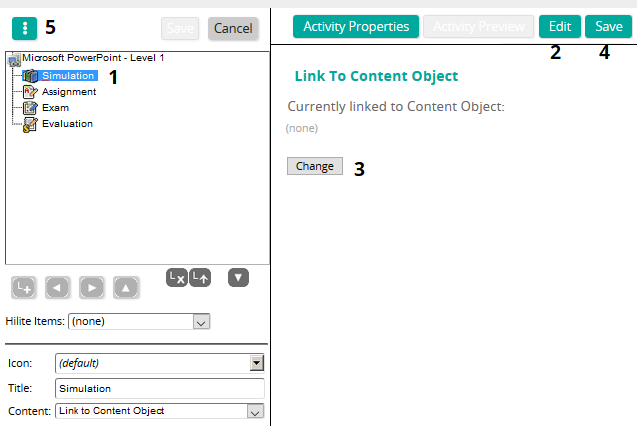
- Click the activity to highlight it.
- Click Edit.
- Click the Change button to search for and select the appropriate content.
- Save your selection.
- Click Options > Content Object Preview to view the content as it would look in the course.
Continue with these steps until desired content has been attached to the appropriate activity.