Step 2: Authoring a content object
From the navigation bar, click Content.Under Authoring, click Content Objects.From the navigation bar, click Content.Under Authoring, click Content Objects.Search for the object you just created.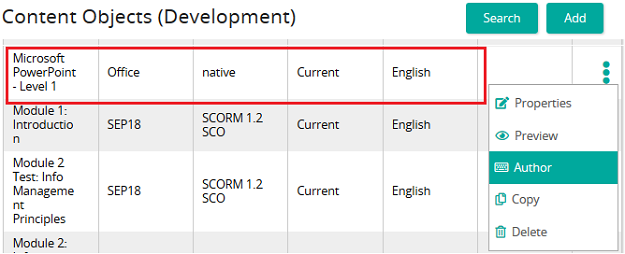 Click Options>Author to begin authoring your object.The Activity Menu for this content object opens.
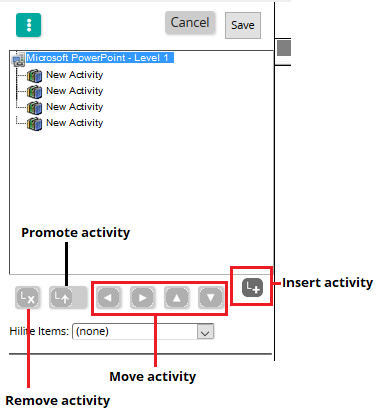
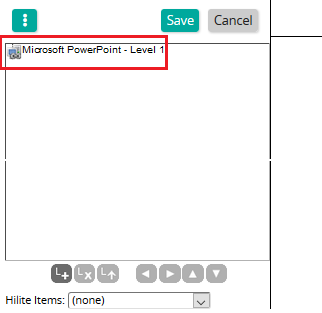 Add new activitiesTo build out the content object, add activities to the menu by clicking Insert Activity. The system adds a new activity to the top of the tree. Activities are added from the top down.Use the buttons at the bottom of the panel to add, remove, or move an activity. Highlight the activity and click a button.
 Title each activity and associate the appropriate type of contentAfter the activities have been added, click on each activity and:
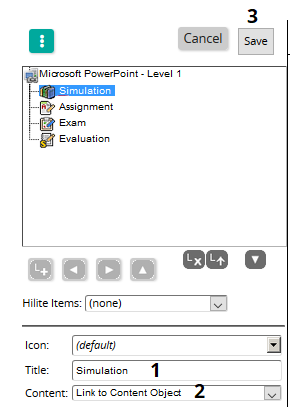 Type a title for each activity.Select the type of Content for the activity.Save your work.
- From the navigation bar, click Content.Under Authoring, click Content Objects.From the navigation bar, click Content.Under Authoring, click Content Objects.Search for the object you just created.Click Options>Author to begin authoring your object.The Activity Menu for this content object opens.Add new activitiesTo build out the content object, add activities to the menu by clicking Insert Activity. The system adds a new activity to the top of the tree. Activities are added from the top down.Use the buttons at the bottom of the panel to add, remove, or move an activity. Highlight the activity and click a button.Title each activity and associate the appropriate type of contentAfter the activities have been added, click on each activity and:Type a title for each activity.Select the type of Content for the activity.Save your work. From the navigation bar, click Content.Under Authoring, click Content Objects.From the navigation bar, click Content.Under Authoring, click Content Objects.Search for the object you just created. Click Options>Author to begin authoring your object. The Activity Menu for this content object opens. Add new activities To build out the content object, add activities to the menu by clicking Insert Activity. The system adds a new activity to the top of the tree. Activities are added from the top down. Use the buttons at the bottom of the panel to add, remove, or move an activity. Highlight the activity and click a button. Title each activity and associate the appropriate type of content After the activities have been added, click on each activity and: Type a title for each activity.Select the type of Content for the activity.Save your work.
- From the navigation bar, click Content.Under Authoring, click Content Objects.From the navigation bar, click Content.Under Authoring, click Content Objects.Search for the object you just created.Click Options>Author to begin authoring your object.The Activity Menu for this content object opens.Add new activitiesTo build out the content object, add activities to the menu by clicking Insert Activity. The system adds a new activity to the top of the tree. Activities are added from the top down.Use the buttons at the bottom of the panel to add, remove, or move an activity. Highlight the activity and click a button.Title each activity and associate the appropriate type of contentAfter the activities have been added, click on each activity and:Type a title for each activity.Select the type of Content for the activity.Save your work. From the navigation bar, click Content.Under Authoring, click Content Objects.From the navigation bar, click Content.Under Authoring, click Content Objects.Search for the object you just created. Click Options>Author to begin authoring your object. The Activity Menu for this content object opens. Add new activities To build out the content object, add activities to the menu by clicking Insert Activity. The system adds a new activity to the top of the tree. Activities are added from the top down. Use the buttons at the bottom of the panel to add, remove, or move an activity. Highlight the activity and click a button. Title each activity and associate the appropriate type of content After the activities have been added, click on each activity and: Type a title for each activity.Select the type of Content for the activity.Save your work. From the navigation bar, click Content.Under Authoring, click Content Objects.From the navigation bar, click Content.Under Authoring, click Content Objects.Search for the object you just created.Click Options>Author to begin authoring your object.The Activity Menu for this content object opens.Add new activitiesTo build out the content object, add activities to the menu by clicking Insert Activity. The system adds a new activity to the top of the tree. Activities are added from the top down.Use the buttons at the bottom of the panel to add, remove, or move an activity. Highlight the activity and click a button.Title each activity and associate the appropriate type of contentAfter the activities have been added, click on each activity and:Type a title for each activity.Select the type of Content for the activity.Save your work. From the navigation bar, click Content.Under Authoring, click Content Objects.From the navigation bar, click Content.Under Authoring, click Content Objects.Search for the object you just created.Click Options>Author to begin authoring your object.The Activity Menu for this content object opens.Add new activitiesTo build out the content object, add activities to the menu by clicking Insert Activity. The system adds a new activity to the top of the tree. Activities are added from the top down.Use the buttons at the bottom of the panel to add, remove, or move an activity. Highlight the activity and click a button.Title each activity and associate the appropriate type of contentAfter the activities have been added, click on each activity and:Type a title for each activity.Select the type of Content for the activity.Save your work. From the navigation bar, click Content.Under Authoring, click Content Objects.From the navigation bar, click Content.Under Authoring, click Content Objects.Search for the object you just created.Click Options>Author to begin authoring your object.The Activity Menu for this content object opens.Add new activitiesTo build out the content object, add activities to the menu by clicking Insert Activity. The system adds a new activity to the top of the tree. Activities are added from the top down.Use the buttons at the bottom of the panel to add, remove, or move an activity. Highlight the activity and click a button.Title each activity and associate the appropriate type of contentAfter the activities have been added, click on each activity and:Type a title for each activity.Select the type of Content for the activity.Save your work.
- From the navigation bar, click Content.Under Authoring, click Content Objects.
- Search for the object you just created.
- Click Options>Author to begin authoring your object. The Activity Menu for this content object opens.
Add new activities
To build out the content object, add activities to the menu by clicking Insert Activity. The system adds a new activity to the top of the tree. Activities are added from the top down.
Use the buttons at the bottom of the panel to add, remove, or move an activity. Highlight the activity and click a button.
Title each activity and associate the appropriate type of content
After the activities have been added, click on each activity and:
- Type a title for each activity.
- Select the type of Content for the activity.
- Save your work. From the navigation bar, click Content.Under Authoring, click Content Objects.From the navigation bar, click Content.Under Authoring, click Content Objects.Search for the object you just created.Click Options>Author to begin authoring your object.The Activity Menu for this content object opens.Add new activitiesTo build out the content object, add activities to the menu by clicking Insert Activity. The system adds a new activity to the top of the tree. Activities are added from the top down.Use the buttons at the bottom of the panel to add, remove, or move an activity. Highlight the activity and click a button.Title each activity and associate the appropriate type of contentAfter the activities have been added, click on each activity and:Type a title for each activity.Select the type of Content for the activity.Save your work. From the navigation bar, click Content.Under Authoring, click Content Objects.From the navigation bar, click Content.Under Authoring, click Content Objects.Search for the object you just created.Click Options>Author to begin authoring your object.The Activity Menu for this content object opens.Add new activitiesTo build out the content object, add activities to the menu by clicking Insert Activity. The system adds a new activity to the top of the tree. Activities are added from the top down.Use the buttons at the bottom of the panel to add, remove, or move an activity. Highlight the activity and click a button.Title each activity and associate the appropriate type of contentAfter the activities have been added, click on each activity and:Type a title for each activity.Select the type of Content for the activity.Save your work.
- From the navigation bar, click Content.Under Authoring, click Content Objects.
- Search for the object you just created.
- Click Options>Author to begin authoring your object. The Activity Menu for this content object opens.
Add new activities
To build out the content object, add activities to the menu by clicking Insert Activity. The system adds a new activity to the top of the tree. Activities are added from the top down.
Use the buttons at the bottom of the panel to add, remove, or move an activity. Highlight the activity and click a button.
Title each activity and associate the appropriate type of content
After the activities have been added, click on each activity and:
- Type a title for each activity.
- Select the type of Content for the activity.
- Save your work.
- From the navigation bar, click Content.Under Authoring, click Content Objects.From the navigation bar, click Content.Under Authoring, click Content Objects.Search for the object you just created.Click Options>Author to begin authoring your object.The Activity Menu for this content object opens.Add new activitiesTo build out the content object, add activities to the menu by clicking Insert Activity. The system adds a new activity to the top of the tree. Activities are added from the top down.Use the buttons at the bottom of the panel to add, remove, or move an activity. Highlight the activity and click a button.Title each activity and associate the appropriate type of contentAfter the activities have been added, click on each activity and:Type a title for each activity.Select the type of Content for the activity.Save your work.