Student Properties page
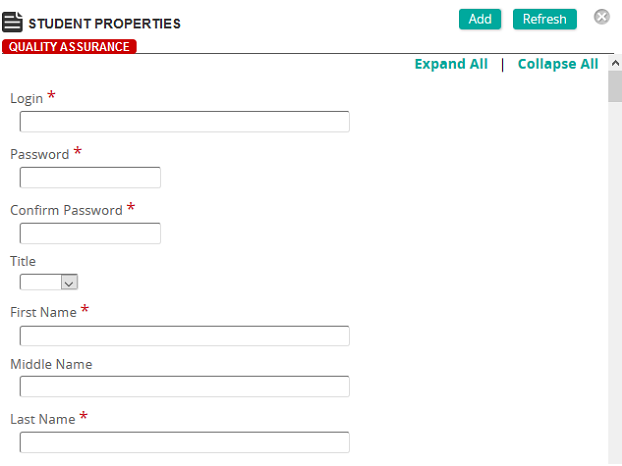
On the Student Properties screen, you can create a student or modify the properties for an existing student.
Fields
Login: Student login ID. Login IDs are unique and are used to identify the student.
Password: Enter a password for the student.
Confirm Password: Re-enter the password.
Title: Titles available in drop down list.
First Name: Student first name.
Middle Name: Student middle name(s).
Last Name: Student last name.
Full Name: Student full name.
Email: Student email address.
Force Profile update on next login: Select this check box to automatically force a profile update when the user next logs in. Otherwise, leave the box unchecked.
User can edit profile: Select this check box to allow a user to edit his profile or leave the box unchecked to allow a user to edit his profile page.
Authentication
Use External Authentication: If you want to use external authentication, select this check box.
Force Password Change on next login: To force a password change for the user on the next login, select this check box.
Personal Development
Personal Learning Journey: These are definitions based on a grouping of Content (eCourses, Training Activities, Assignments, or Exams), Competencies, and/or Requirements that are assigned to specific students.
Personal Development Plan: View the personal development plan for current student.
Preferences
Language Preference: The language the user prefers to use for communications.
Correspondence Preference: The default will be the setting chosen for correspondence in company settings. Any other choice in the Student Properties sheet overrides the company setting.
Email Format: The default email format. The options are:
Allow Unsolicited Email: Place a check mark in the check box to allow the student to receive unsolicited email. This is used to store user preference. This is primarily used by customers using eBusiness and communicating with external users.
Organizational
Employee ID/Reference: Type a unique identifier for the user.
Job: The student may be linked to a job specified in Rival Learn ( Enterprise > Organization > Jobs ).
Position Number: The position number is used to identify the position of the student.
Position Title: The title of the student's position.
Reports To Position: This is the position number that this position normally reports. Reports To Position has been replaced by the Supervisor function. See Supervisor for more information about defining a Supervisor/Subordinate relationship for student users in Rival Learn.
Org Unit: You can assign the student to an organization unit if organization units have been established in Rival Learn. Once assigned, you can direct training to a particular organization unit so that all students in that organization unit receive the training.
Start Date: Click the box or calendar icon to select a start date. This date is typically the date the user is added in Rival Learn.
Termination Date: If the user no longer needs access to Rival Learn (such as when terminating employment), click the box or calendar icon to select a termination date.
Initial Learning Journey Effective Date: To control when learning journeys will be effective for a specific student. Setting Initial Learning Journey Effective Date as a future date means Learning Journeys can be configured and students created in the system before making Learning Journeys effective. When the future date arrives, all Learning Journeys for the student will become effective.
Cost Center: Associate a cost center with the student.
Category: Associate a category with the student. A category must first be created before it can appear in the drop down list.
Status: Select Active or Inactive . A user that is inactive in Rival Learn cannot access any information. A student that is inactive in Rival Learn cannot access any information; however, their entire training history is maintained.
Status Description: Type any additional information to describe the user's status such as retired, on leave, and so on.
Groups: Defines what Group(s) the student is assigned to. A student group must be created before it can be added in the Student properties. The Add button opens the Student Groups list window where you can search for and select the student group or groups to which the student must belong.
Supervisors: Defines a list of supervisors for the student user. The Add button opens the Users list window where you can search for and select supervisors for the student. The Remove Selected button removes the selected supervisor from the list. The Mark All button marks all the supervisors in the list so you can remove them.
Subordinates: Defines a list of subordinates for the student user. The Add button opens the Users list window where you can search for and select subordinates for the student. The Remove Selected button removes the selected subordinates from the list. The Mark All button marks all the subordinates in the list so you can remove them.
Membership Dates: Click to view the Membership Dates Properties page where you can view the memberships this student has and the dates the memberships began.
Contact Information
Enter any additional contact information if required.
Personal Information
Birthdate: Click the box or calendar icon to select the user's birthday from a calendar pop-up.
Gender: Select the user's gender from the list.
Image: Select an image of the student and upload it.
Billing Information
Billing information for the student may be required if the student is being invoiced for courses through the eCommerce section of Rival Learn.
eCommerce
eCommerce settings allow for customized transactions through the eCommerce section of Rival Learn. (See the eBusiness Management Guide for detailed information on each setting.)
Custom Data Fields
CTC Certification: Select Yes or No.
Demographics
Home Email: The student's home email.
Employment Status: The student's employment status.
Mobile (cell) Phone: The student's cell phone number.
Content recovered from the legacy Help Center on 2026-09-14 and not yet reviewed against the current product. Source: https://srt-learning-help.silkroad.com/#/home/17460/en/std