Administration Portal home page
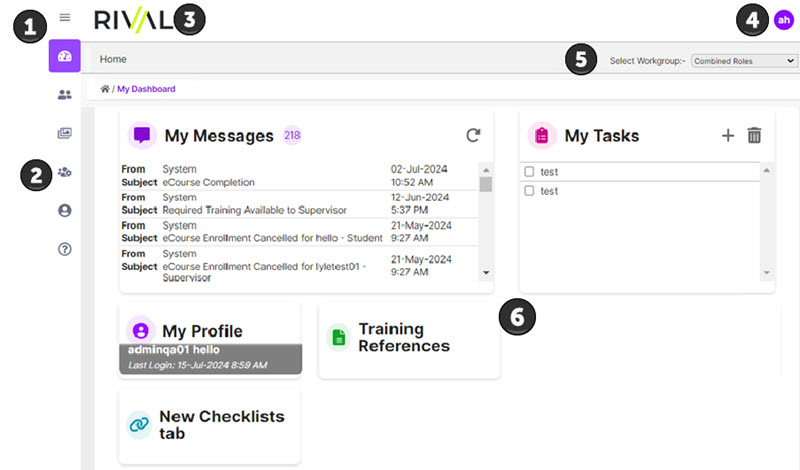
The Administration Portal home page opens after an administrator logs into Rival Learn. The page displays the Dashboard, which shows any messages that have been sent to the administrator and shortcut tiles that an administrator has set up.
| Name | Description | |
|---|---|---|
| 1 | Hamburger menu | Toggle to expand or collapse the navigation bar. When collapsed, only icons are shown not text labels. |
| 2 | Navigation bar | Contains menu options to access pages to perform actions. |
| 3 | Header | Displays the Rival logo or a custom logo (if an administrator uploaded one). |
| 4 | User avatar | Avatar of the logged-in user's initials. If user has a special character as first letter of first or last name, a generic avatar Tip: Click the avatar to see options to view/update your profile or log out. |
| 5 | Role selector | Select a role to see the tabs, sub tabs, and links associated with that Rival Learn role. |
| 6 | Shortcut tiles | Click a shortcut tile to perform a specific function. |
 is shown.
Breadcrumbs
Breadcrumbs serve as a navigational aid so you can keep track of your location and maneuver easily.