ATS Integrations
ATS Integrations connect Rival Recruit with external applicant tracking systems, enabling jobs and candidates to move seamlessly between platforms. Use ATS Integrations to:
- Sync with an existing ATS — If your organization uses Recruit as an add-on to your primary ATS, this integration enables ongoing data exchange so you can source, match, and engage candidates in Recruit while keeping your ATS as the system of record. See also Recruit for your ATS.
- Migrate from a previous ATS — If your organization is transitioning to Recruit as your full hiring platform, this integration lets you import jobs and candidate data from your prior system to reduce manual data entry during onboarding.
Once connected, Recruit continuously syncs key data so your team can leverage sourcing, matching, and outreach capabilities without disrupting existing hiring workflows.
How it works
ATS Integrations allow you to:
- Import jobs from your external ATS into Recruit, enabling passive candidate matching against your open roles.
- Import candidates from your external ATS into Recruit for each imported job.
- Export candidates sourced through Recruit back to your primary ATS, so hiring can continue in your system of record.
After initial setup, new jobs are automatically synced on a recurring basis, and new candidates associated with those jobs are imported automatically.
Set up your ATS connection (admin)
Administrators configure the integration from Administration > Settings > Connect Recruit to your ATS.
Setup is a guided, three-step process:
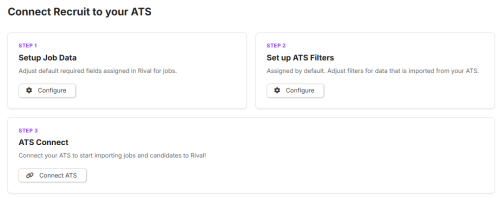
Step 1: Configure job data defaults
Define how external ATS job fields map to Recruit. Default values are pre-populated but can be adjusted:
- Category — Assign a default category for imported jobs.
- Department — Assign a default department.
- Recruiting Manager — Assign a default recruiting manager.
- Default City — Assigned to jobs that do not have a city value. Alternatively, select "Reject import if missing" to skip jobs without location data.
These defaults ensure imported jobs meet Recruit's minimum data requirements.
Step 2: Set import filters
Choose which jobs and candidates to bring into Recruit:
- Select job filters to control which jobs are imported (e.g., by visibility, status).
- Application filters control which candidates are included.
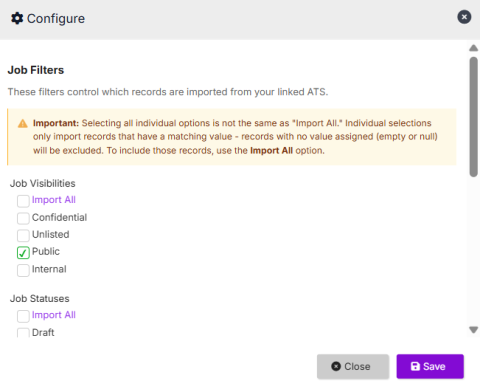
Important: Selecting all individual options is not the same as "Import All." Individual selections only import records that have a matching value — records with no value assigned (empty or null) will be excluded. To include those records, use the Import All option.
Tip: Job visibility fields may not be populated in your ATS. If you want to import all jobs, use the Import All checkbox rather than selecting individual visibility options.
Step 3: Connect your ATS
Click Connect your ATS to open the connection modal. Select your ATS provider from the list and follow the provider-specific authentication steps (e.g., API key, token, or OAuth flow).
Setup complexity and time vary by ATS provider. For provider-specific instructions, see the ATS Integration documentation.
Once connected, a full sync is initiated automatically. Jobs are imported first, followed by candidates.
Note: Only one ATS connection is supported at a time. If you need to reconnect (e.g., after a disconnection), click Reconnect — a full sync will be performed.
Import candidates
After jobs have been imported, you can import candidates for each job:
- Navigate to the job in Recruit.
- Click Import Candidates from External ATS.
- Recruit retrieves candidate records and their resume attachments from the connected ATS.
After the initial import, new candidates associated with that job are automatically imported as they appear in the external ATS. No further manual action is required.
Export candidates to your ATS
When candidates sourced through Recruit are ready to move forward in your hiring process, export them back to your primary ATS:
- From search results or a candidate list, select candidates using the checkboxes (individual or bulk select).
- Click Export on a candidate's profile, or use the bulk action bar to export multiple candidates at once.
- Select the target job in the external ATS.
- Candidate profiles are created in the external ATS and linked to the selected job.
After export:
- The candidate is tagged Exported to ATS in Recruit. Hover over the tag to see who exported the candidate and when.
- The Export button changes to View — click it to open the candidate record directly in your ATS.
Tip: When exporting in bulk, a confirmation pop-up displays the selected candidates and flags any that were already exported.
Create jobs in Recruit for sourcing
In addition to importing jobs from your ATS, you can create jobs directly in Recruit to begin sourcing immediately — even before a job is posted in your primary system.
When you source from a job created in Recruit:
- ROSI automatically extracts skills from the job description and maps them into your search filters.
- This speeds up the sourcing process and improves the accuracy of AI-generated matches.
You can create a job manually or use a Job Template to prefill standard fields. AI-powered job descriptions can be generated and customized to reflect the role and ideal candidate profile.
Note: Creating jobs in Recruit does not replace or affect job postings in your external ATS. These are separate records used to drive sourcing activity within Recruit.
Recent Import Activity
The Recent Import Activity section on the settings page shows the status of import processes. Each import goes through three stages:
- Stage — Recruit retrieves data from the external ATS.
- Map — Data is mapped to Recruit's field structure.
- Import — Records are created in Recruit.
Click the eye icon to view filter errors for a given process group, including tracking IDs for troubleshooting.
Key information
- ATS Integrations are available for clients using Recruit as an add-on to their existing ATS, standalone search clients, and full-platform clients migrating data from a previous ATS.
- Only one ATS connection is supported at a time. Multiple simultaneous integrations are not available.
- Imported jobs are marked with a Recruit Exchange designation.
- Imported candidates are sourced as Recruit Exchange.
- After initial import, jobs and candidates sync automatically on a recurring basis.
- If the ATS connection is disconnected and reconnected, a full re-sync is performed.
- Source with ROSI is available on imported jobs, so you can find passive candidates using external job data.
- For a list of supported ATS providers, see the ATS Integration documentation.