Managing and editing requisitions
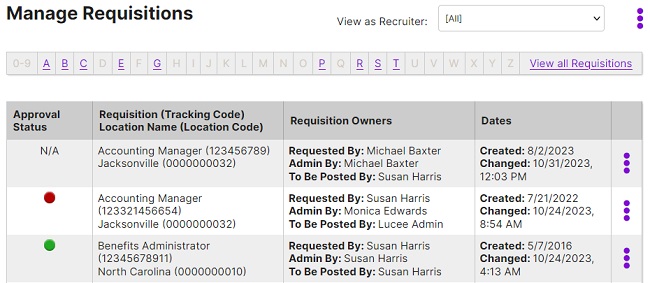
Use the Manage Requisition page to manage and edit requisitions.
Key info
- Requisitions are sorted with most recent requests at the top.
- Use the arrow buttons to page through the requisitions or click a letter in the alphabetical bar to see open requisitions starting with that character.
- Click
 to access actions like creating a requisition, posting a requisition, and filtering to show only requisition ready to be posted.
 - Recruiting managers can use the View As list to view as the user they select.
Good to know
- Approval Status is represented by an icon, and you can hover over an icon to see its title (Rejected, Approved, Pending):
 One or more approvers rejected the requisition
 Approval process initiated but not yet complete
 Requisition is approved and can be posted
N/A No approval path defined