Navigating Recruit
Rival Recruit is a web-based software application, which means the user interface is made up of pages. Each page has a consistent look and similar navigational features.
Let's take a look at a Rival Recruit page.
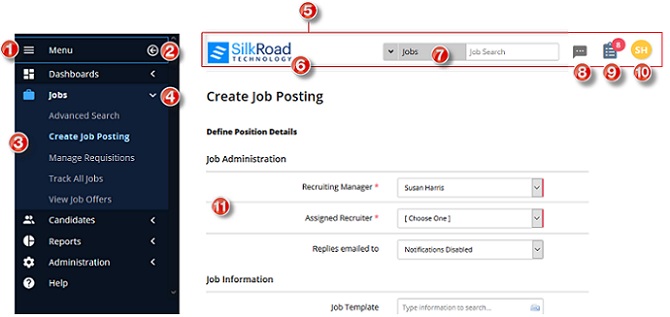
| Name | Description | |
|---|---|---|
| 1 | Hamburger menu | Toggle to expand or collapse the navigation bar. When collapsed, only icons are shown not text labels. |
| 2 | Collapse menu | Click to collapse the navigation bar. |
| 3 | Navigation bar | Contains menu options to access pages to perform actions. |
| 4 | Arrow | Toggle to show and hide sub menu options. |
| 5 | Header | Contains the Rival logo or custom logo, quick search box, user avatar, and more. |
| 6 | Logo | The Rival logo appears by default, but you can customize to display your own logo. |
| 7 | Quick search | Performs a search for a candidate or job that you enter here. Tip: Toggle between a candidate search and job search by clicking the down arrow. |
| 8 | Text messaging | Opens the Conversations page so you can access your text messages. Note: Icon is only available if you have purchased and configured text messaging. |
| 9 | Task List | Opens your Task List where you can approve requisitions and offers and also review resumes. |
| 10 | User avatar | Displays the avatar (initials) of the logged-in user. Click to access user profile (My Account), Candidate Experience Admin Portal (if set up), or log out. |
| 11 | Work pane | Provides an area where you perform actions like adding, selecting, and editing data. |
Required fields
A required field has a red line on the right of an entry box or selection list.
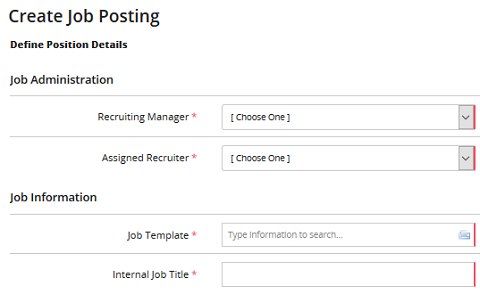
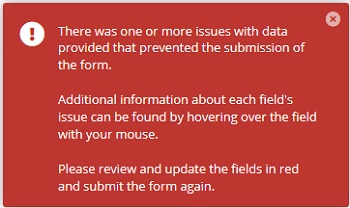
If you do not complete required fields, a message appears at the top right of a page:
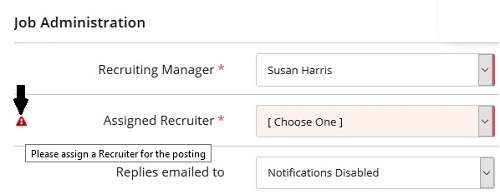
Hover your mouse over the red alert icon to get field details:
Type-ahead fields
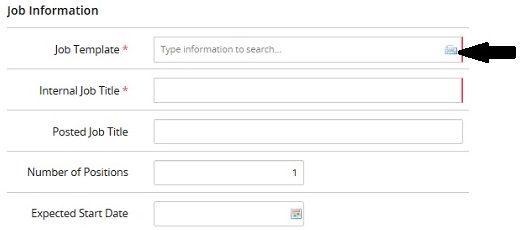
Some fields in Rival Recruit have this icon:  . This indicates a field is a type-ahead field. As you type, the system predicts what you are typing and completes it based on values already in the system.
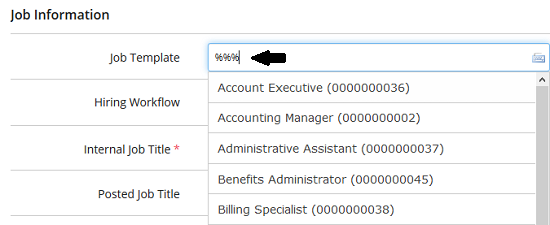
In type-ahead fields, you can also type %%% to open a drop-down list and make a selection:
Sorting columns
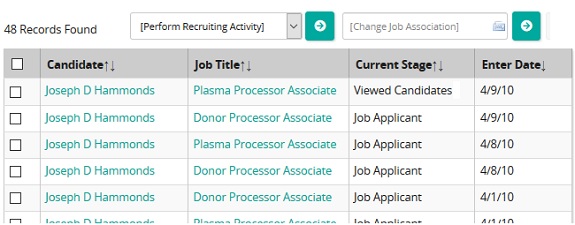
Columns that have up and down arrows can be sorted:
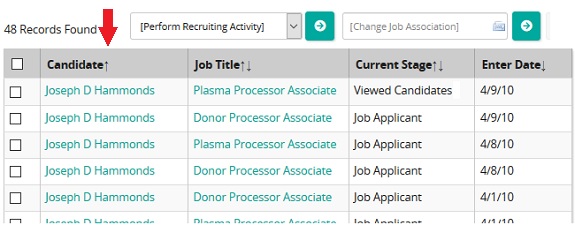
If a column has only an up or down arrow, that means data is currently sorted by that column:
Text editor
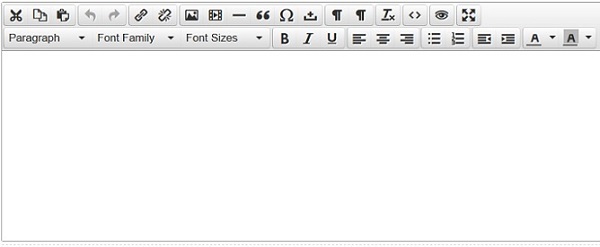 A text editor is available on various pages throughout the system—like for email content, job descriptions, required skills, and so on. Rival Recruit's text editor works like other text editors. You can enter text, change fonts and font size, format text, change text alignment, add images, and more. There are some quirks: Use the insert text option to insert text from a Word document. It removes any extra formatting that might cause formatting problems or cause text to display incorrectly.To use the Insert Image feature, type in the image URL. For example, to include an image from your company’s website, view the image properties and include the URL in the Image URL field instead of uploading an image to Rival Recruit. After you have entered the URL (or address), the image is displayed in the Preview window.
HTML formatting tips
You can use the following HTML tags within the Job Description, Required Skills, and Required Experience sections of the Job and Requisition Create/Edit forms. You can also use along with any tags created using the built-in HTML Editor tool.
| This HTML tag: | Does this: |
|---|---|
| <B> | Bolds text that follows |
| </B> | Ends bold text |
| <BR> | Breaks to the next line |
| <BR><BR> | Adds a line of white space |
| <UL> | Starts an unordered (bulleted) list |
| </UL> | Ends unordered (bulleted) list |
| <I> | Italicizes the following text |
| </I> | Ends italicized text |
Examples
| HTML tag | As entered in Job Description | Result seen by applicant |
|---|---|---|
| <B></B> | <B>Recruit</B>the best talent. | Recruit the best talent. |
| <BR><BR> | Come work for the best company <BR><BR> We are dedicated to growing talent. | Come work for the best company We are dedicated to growing talent. |
| <BR> | Come work for the best company <BR> We are dedicated to growing talent. | Come work for the best company We are dedicated to growing talent. |
<UL> <LI> <LI> </UL> | Come work for the best company <UL> <LI> We grow talent <LI>We have great benefits </UL> Call Us! | Come work for the best company We grow talentWe have great benefits Call us! |
| <I> </I> | Come work for the <I>best</I> company! | Come work for the best company! |