Job search
Searching for jobs in Rival Recruit is a task you do often. Rival Recruit has flexible search options to make searching easy.
| Search option | Description |
|---|---|
| Quick search | Quick search is a fast way to find a job. In the header at the top of a page, toggle the quick search bar to Jobs. Then type a job title or tracking code and press Enter. |
| Advanced search | Use filters to find what you are looking for. |
| Basic search | Basic searches are default system searches. There are three:
|
| My searches | My searches are searches that you created and saved and are available from the Jobs page. My searches appear after you have saved at least one set of results. |
| Recent searches | Recent searches are your last 10 most recent searches—excluding basic and your saved My search searches. Recent searches are available from the Jobs page. |
| Most recent search | The most recent search you ran. |
Filters
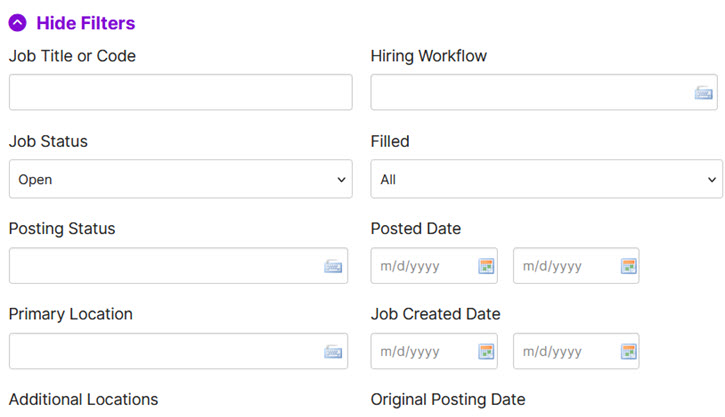
Search filters help you narrow the scope of a job search. By using filters, you get a subset of jobs (the subset you really want) rather than all jobs.
Search result columns
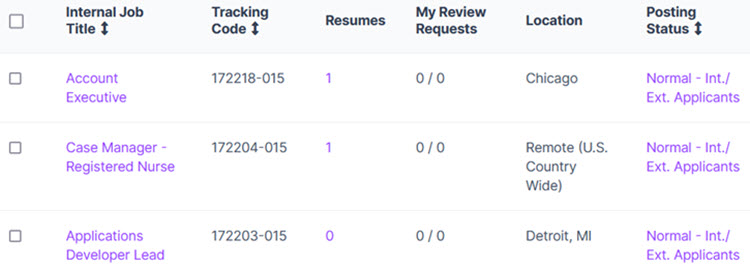
Search results appear in a data grid. Some columns are included by default, but you can add additional columns to meet your needs.
Columns with up and down arrows are sortable. A column with one arrow means that column is sorted.