Remote job location
The remote job location functionality provides system users the option to create remote as a job location worldwide, in a country, and in a state/region/province.
Key info
- The remote job location functionality is available for active Candidate Experience career sites that have the Candidate Experience redirect enabled. It is not available for legacy career sites (ePosting sites).
- This is a self-service feature administrators can turn on.
Good to know
- If you currently have a remote location set up, you will want to reassign active job postings to the new remote locations and then deactivate the previous remote company location.
Turning on remote job location
The remote job location functionality is off by default. Administrators can turn on (enable) this feature.
Creating the three types of remote locations
Admin users can create remote company locations for:
After these remote locations are created, they are available for selection when creating requisitions, job templates, and job postings. They are also available from the Search jobs by location filter on the Job List page on a Candidate Experience career site.
Selecting a remote job location on a job posting
To create a job posting that is:
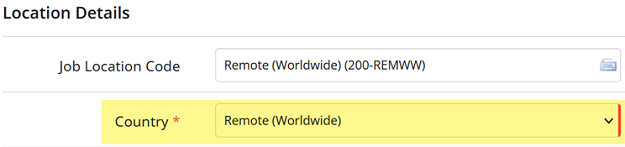
- Remote worldwide, select the Remote worldwide option from the Job Location Code field. The Country field then populates as Remote (Worldwide). Example:
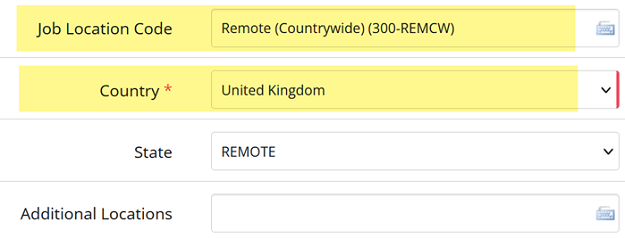
- Remote in a specific country, select the Remote countrywide option from the Job Location Code field. In the Country field, select a country. Example:
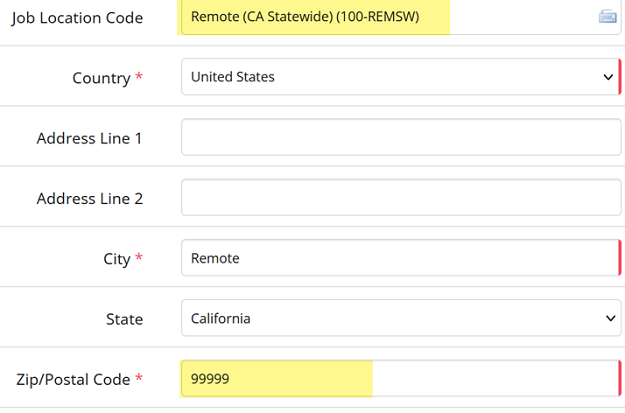
- Remote in a specific state, select the Remote statewide location (specific to the state) from the Job Location field. Fields pre-populate except zip code. Type 99999 in the zip code field. Example:
Remote job location in Candidate Experience
When a remote job location is assigned to your job posting, the various remote company locations display in the Search jobs by location filter:
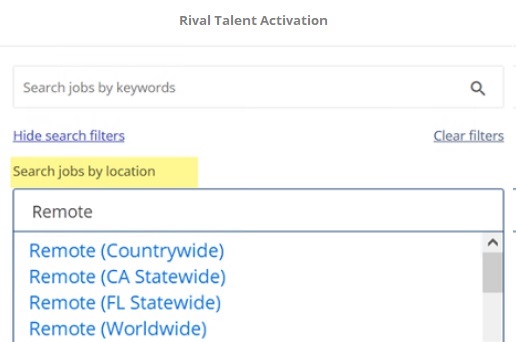
The candidate can quickly make their selection and search for jobs in the different remote locations.
The remote locations can be displayed on the Job List Page and Job Posting Details page of your Candidate Experience site in a couple different formats. Here are two examples:
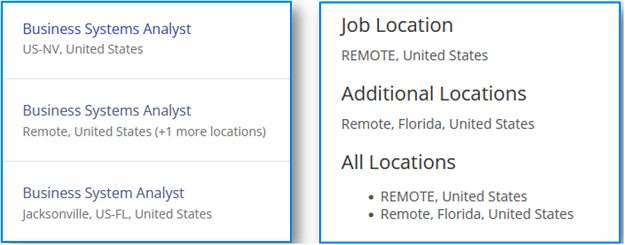
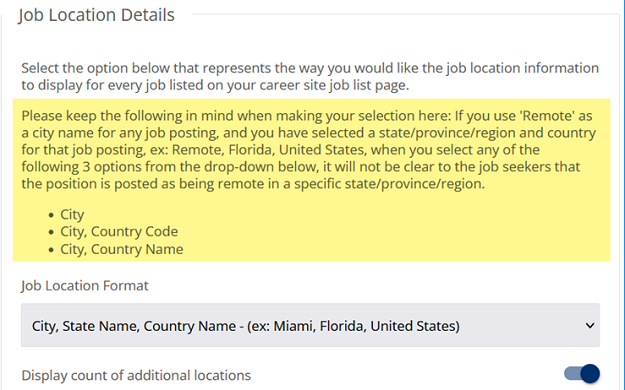
When using the Remote location option, it is important the Candidate Experience administrator pay close attention to the Job Location Details setting on the Job List page in the CX Admin portal. Notice the highlighted text: