Interview scheduling for candidates
When a recruiter schedules an interview with the "Let recipient select the time" option enabled, the candidate receives an email invitation to choose their preferred interview time. This topic describes what the candidate sees and does throughout the scheduling process.
Note: Candidates do not need a Rival Recruit login to complete these steps. The entire process is handled through email links and a web-based scheduling page.
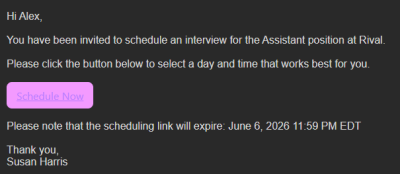
Step 1: Receive the scheduling email
The candidate receives an email with the subject line and body configured by the recruiter (or using the default "Request to Schedule" template). The email includes a Schedule your interview button that opens the time selection page.
Step 2: Select a time
Clicking the button opens a calendar view showing available time slots based on interviewer availability. The candidate selects a date and time that works for them.
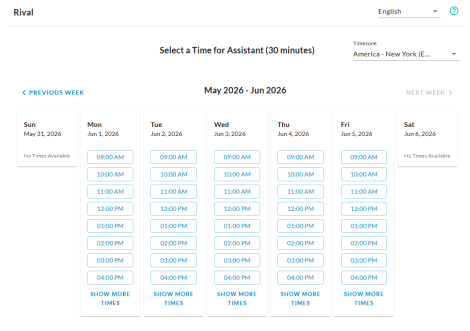
- Only times when all required interviewers are available are shown.
- Time slots are displayed in the candidate's local time zone.
- The candidate can navigate between dates to find a suitable time.
Step 3: Confirm the selection
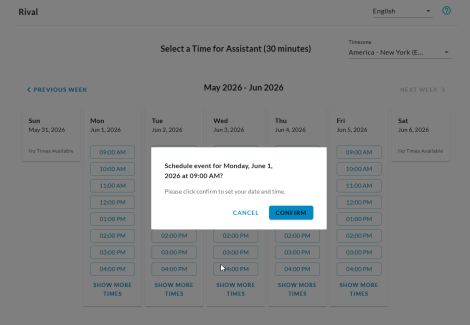
After selecting a time slot, the candidate is asked to confirm their choice. This step shows the selected date, time, and duration before finalizing.
Step 4: Interview confirmed
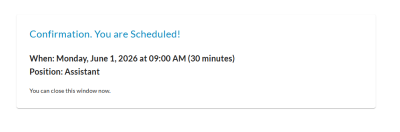
Once confirmed, the candidate sees a confirmation page with the interview details (date, time, duration, and interviewer names).
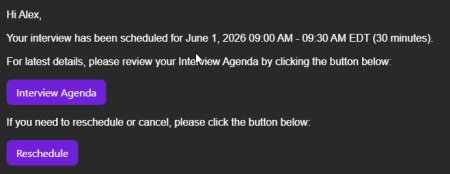
Step 5: Receive the confirmation email
The candidate also receives a confirmation email with:
- Interview date, time, and duration
- Interviewer name(s)
- An ICS calendar attachment to add the interview to their personal calendar
- A Reschedule or Cancel link to modify the interview if needed
Reschedule or cancel
If the candidate needs to change their interview time or cancel, they can click the Reschedule or Cancel link in their confirmation email. This opens a page where they can:
- Reschedule — Select a new time from available slots.
- Cancel — Cancel the interview entirely.
When a candidate reschedules or cancels, the organizer and all interviewers are notified automatically and their calendars are updated.
Reminders
Depending on how the recruiter configured the scheduling messages, the candidate may also receive:
- Reminder email — Sent if the candidate has not yet selected a time.
- Day-before reminder — Sent the day before the scheduled interview.