Job Posting Details Page
The Job Posting Details page provides a streamlined, modernized experience for viewing and managing individual job postings. The updated layout highlights key information and actions, helping users quickly review job activity, track candidate progress, and manage sourcing—all from a single page.
Walk through our Guided Demo for details.
Accessing the Page
From the Job Tracking page, click a job title to open its Job Posting Details page.
Overview Tiles
Across the top of the page, users see six tiles that summarize current job metrics:

- Candidates – Total number of applicants.
- New Candidates (Last 24 Hours) – Candidates who applied or were added within the past day.
- Pipeline – Candidates imported to the job’s Talent Pool through Source with ROSI.
- Offers Extended – Number of candidates in the Offer Extended stage.
- Positions Filled – Count of filled positions out of total openings.
- Days Open – Number of days since the original post date.
Clicking a tile filters the Candidate Pool list to display the corresponding set of candidates.
Job Overview Cards
The cards below the tiles display key details about the job and associated activity:
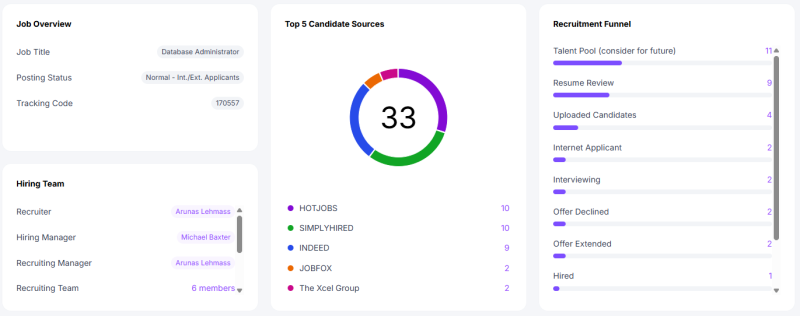
- Job Overview – Displays job title, posting status, tracking code, and CX Career Site links (if applicable).
- Hiring Team – Lists each team member assigned to the job by role.
- Recruitment Funnel – Shows the number of candidates currently in each hiring stage (e.g., 3rd Party Sourced, Internet Applicant, Uploaded Candidates, Hired). Clicking a stage opens a filtered Candidate Pool view.
- Top 5 Candidate Sources – Displays the top five candidate sources for this job (e.g., LinkedIn, Candidate Experience). Clicking a source opens a filtered Candidate Pool view.
Note: The Top 5 Candidate Sources graph displays totals for the top five sources only.
Job Fields
Below the overview section, users can view all job fields.
Editing remains the same: click the ellipsis menu in the top-right corner to make changes.
Inline editing will be added in a future enhancement.
A fixed side navigation card allows users to quickly move between sections. Users can:
- Expand or collapse all sections, or
- Click a section name to jump directly to that part of the page.
Tip: Evaluation Questions are currently hidden and will be available in a future update.
Job Field Display Settings
All job fields are now visible by default when viewing a job posting.
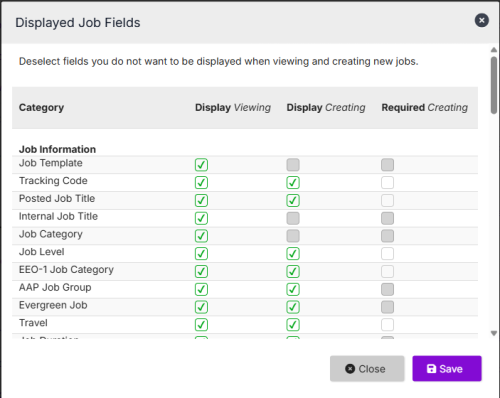
Admins can control field visibility from Admin Settings > ATS > Displayed Job Fields.
The Displayed Job Fields configuration allows selection by context:
- Display while Viewing
- Display while Creating
- Required while Creating
This improved configurability ensures only relevant fields appear to users when viewing or creating job postings.
For more details, see Displayed Job Fields Settings.
Source with ROSI
At the top of the page, users with the appropriate permissions can click Source with ROSI to search for potential matches.
When enabled, this button appears in purple.
Search parameters from the current job posting are applied automatically, and imported candidates are added to the Pipeline linked to the job.
This page also displays ROSI Skills Match results, showing up to 45 top-matched candidates scored against the job's skill requirements.
Enablement
The redesigned Job Posting Details page is available as a Beta feature.
- Go to Settings > Beta Features.
- Under Available Features, locate Job Posting Details (Redesigned).
- Use the On/Off radio button to enable or disable the new view.
Features are On by default during the Beta period. After the Beta period, this feature will be enabled for all users.
All existing permission settings—whether assigned by role or individual user—continue to apply on the redesigned page.