Help CenterRecruitIntegrations and add-onsBroadbean or JobTarget integrationBroadbean posting process
Deactivate/remove a Broadbean job
You can deactivate or remove a Broadbean job in several ways:
- Deactivate the job in Rival Recruit
- Remove the job from all job boards but leave active in Rival Recruit
- Remove the job from specific job boards
Deactivate a job in Rival Recruit
- When you deactivate a job, Broadbean removes the job during the timeframe established with the job boards.
- Many of Broadbean’s job board relationships are real time (mostly US boards) while other relationships are batch feeds.
- From the navigation bar, click Jobs>Job Tracking.
- (If applicable) Filter to limit search results.
- In the results list, select (click) the job's check box.
- From the Take Action list, click Deactivate and click
 .
. - On the Confirmation pop-up, click Continue.
Or
When a candidate is moved to the Hired hiring stage by a recruiter or recruiting manager and the recruiter or recruiting manager selects Yes to the Close this Job? question.
Remove a job from all job boards but leave active in Rival Recruit
- Select the Deactivate button on the Job Board Status page:
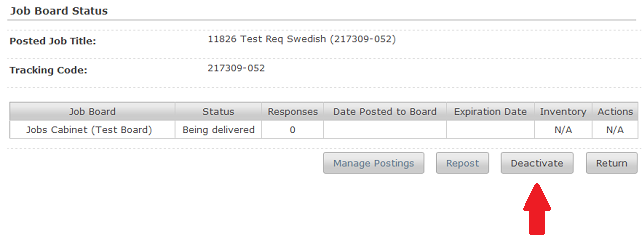
- On the confirmation pop-up, click Continue. A request is sent to Broadbean to deactivate the job from all job boards currently posted via Broadbean. The job is pulled during the timeframe established with the job board.
Remove a job from specific job boards
- On the Job Posting Details page, select the View Board Status option. The Job Board Status page opens.
- Select Manage Postings. The Broadbean standalone app opens.
- Delete the posting from specific job boards.
Tip: Refer to the Broadbean User Guide for more details on the options available within the standalone app.