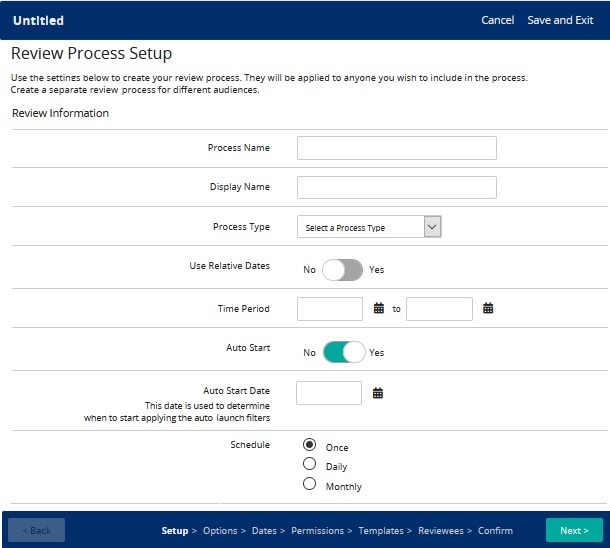
| Setup | - Name the review process
- Select process type (frequency)
- Select relative dates or specify review start and end dates (a fixed time period)
- Select whether to auto start the review. Auto start requires a start date and schedule (daily, weekly, monthly).
|
| Options | Turn on or off options: - Self Review: Employee writes self review.
- Self Review Optional: Makes the self review optional. Manager can start review immediately and doesn't have to wait on employee's self review. Employee is not required to complete a self review. (Only available if Self Review option is set to Yes.)
- Key Reviewers: Manager can select Key Reviewers who complete their own review of employee. Employee cannot see these reviews. Tip: If Self Review Optional is set to Yes, employee is the key reviewer. Managers can select additional key reviewers.
- Calibration Pause: Calibration Pause pauses a review process after a manager completes a review. This pause gives HR time to analyze reviews for whatever reasons. Managers can reset individual reviews. HR admins can restart the review process.
- 2nd Level Manager Approval: Second Level Manager approves manager's review or requests rewrite.
- HR Approval: HR approves manager's review or requests rewrite.
- Review Meeting: Manager schedules a meeting with employee.
- Manager Sign Off: Manager is required to sign off on review.
- Employee Sign Off: Employee is required to sign off review.
Tip: Manager writes an employee review is required in every review process and is not shown as an option here. |
| Dates | - If you are using a time period (fixed dates), set review milestone dates.
- If you are using relative dates, set days after start values.
|
| Permissions | - Set whether managers can request a rewrite of employee self-review. (Only if Self Review is set to Yes)
- Set maximum number of key reviewers. 80 is the maximum allowed. (Only if Key Reviewers is set to Yes)
- Set whether overall ratings appear on the review.
- Set whether a progress bar is displayed on reviews with ratings/required comments.
- (Only if HR approval option is set to Yes) Auto-complete HR approval tasks toggle appears. If you want the system to automatically do the HR approver step (in case HR approver doesn't), enable this option and set number of days to wait for HR approver to do approval.
- (Only if Manager Sign off or Self Sign off is set to Yes) Set whether employee and manager can enter a private note.
- Set whether manager receives task notification when review enters HR approval status.
|
| Templates | Select form templates to use in the review process. If self review is optional, you can select a different form template for the manager and self review. Rating and rollup settings are taken from the form template. If you want goals pulled into a review, turn on the option. You have these additional options: - Require comments (If selected, requires that employees enter comments for each goal in review)
- Allow rating (If selected, select the weight of goal average.)
- Select a goal rating scale
- If selected rating scale includes a zero-based rating, you can choose to ignore zeros so it doesn't affect overall rating.
- Allow individual goal weights (If selected, employees enter goal weights for each goal in their review. Goal weights must total 100%. Managers can change goal weights when they review the employee.)
- Select goal period(s).
Enter instructions for managers, self reviewers, key reviewers as needed. Instructions appear on the Instructions tab during the review process. |
| Reviewees (or Filters) | (Auto Start is set to No on Setup page) Select employees to include in the review process. You can use filters (hire date range, location, organization, job, hire month, and more) to limit the employees to include in the review. Tip: To include all employees in a review process, leave the filters blank and click Search. In the search results table, click  and click Select All. and click Select All. (Auto Start is set to Yes on Setup page) Select filters to use to pull reviewees into the review process. You can add more at any time. If no filters are set, the review will go to everyone. |
| Confirm | Resolve any items the wizard indicates need attention. Click Resolve to go to a specific issue. Tip: You cannot activate a review process (launch) until all issues are resolved. |