eForm element properties
eForm Builder element properties control how an element functions. Properties vary based on the element type. Click the gear icon  to edit element properties.
Section (used on Review templates)
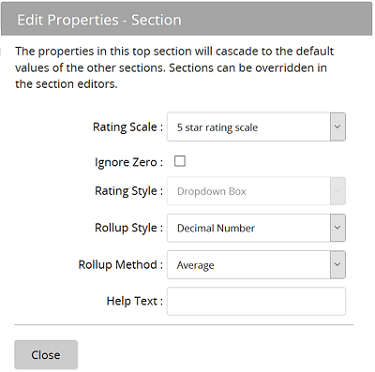
Set rating scales in the Section element rather than in the Ratable Text element. You can select the rating style, rollup style, rollup method (average or weighted average). If a rating scale is a zero-based scale, you can also choose to ignore zero rating (functions as an N/A type of score that does not impact overall rating.) Add help text if you want.
All sections inherit the rating scale of the first section on the form. However, you can change a section so it has its own rating scale. Edit the properties, unlock the lock icon, and select a rating scale.
Ratings roll up into an overall score for the review not by section. The overall score is the average of all ratings on the form.
Tip: The rating style of the star slider can be used only with rating scales that begin with 1. It cannot be used with rating scales that begin with 0.
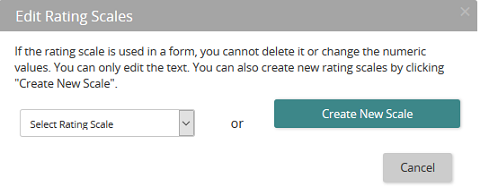
On a Section element, you can also edit the rating scale properties. Select an existing rating scale or create a new scale:
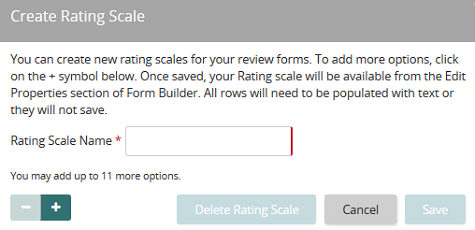
This is the Create Rating Scale page:
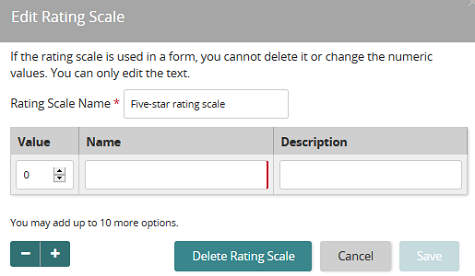
And the Edit Rating Scale page:
Section (used on Engage template)
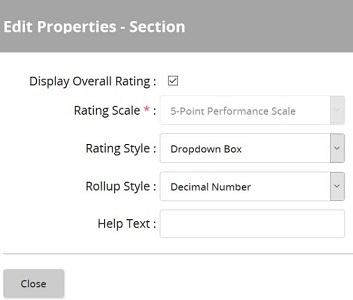
Works the same as the Section element on Review templates with minor differences. There is no rollup method option. There is a Display Overall Rating check box that controls whether overall score is displayed to users.
Ratable Text
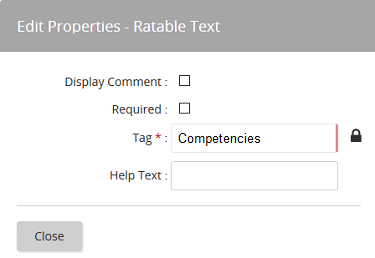
Display Comment controls whether a comment box appears on the form. A comment box allows text entry.
Required controls whether a user must complete this comment or not.
Tag is a behind-the-scenes label used in reporting and analytics. The tag is built in when you name the ratable text section. Clicking the lock icon unlocks the tag for override text entry.
Help Text provides tool tip help for this element on the eForm.
Text
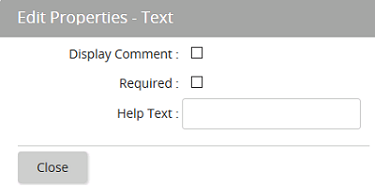
Display Comment controls whether a comment box appears on the form. A comment box allows text entry.
Required controls whether a user must complete this element or not.
Help Text provides tool tip help for this element on the eForm.