My Team page
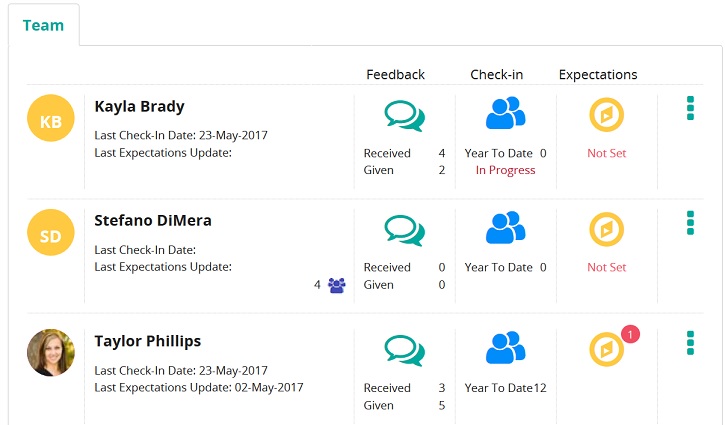
Managers have access to the My Team page. The page shows direct reports for the currently-logged in manager. For each direct report, a manager can:
- View their feedback
- View their Check-ins
- View and edit expectations
- Request a Check-in
- Request others in the organization provide feedback (manager requested feedback)
- View user profile (talent profile)
Under each team member's name, a status line shows the date of the last Check-in and date expectations were last updated.
The Feedback and Check-in columns have counts of feedback given/received and year-to-date Check-ins. The Feedback column shows an In Progress status if a team member has a Check-in in progress. The Expectation column shows a Not Set status if a team member has not yet set expectations.
Buttons, links, and options

Opens the Feedback page so you can view feedback a team member has given, received, and requested from other employees.

Opens the Check-in home page so you can view a list of in-progress and completed Check-ins for a team member.

Opens the Expectations home page so you can view existing expectations for a team member. You can view a completed expectation, open an in-progress expectation to edit, create a new expectation, and more.

- Shows available actions you can perform such as Request Check-in, Give Feedback, and Request Feedback.
Tip: If the team member has not yet set expectations, you can request the team member set expectations or set expectations for them before requesting a Check-in.

Click to see direct report's downline team members and their feedback, check-in, and expectation information.